Versión v11.28.0 BETA · 10 de octubre de 2026 · inmiami.net
El Planner recomienda, tú decides.
Lee este manual una vez, en unos 15 minutos. Después úsalo para consultar.
1. Qué es el Planner y qué no es
1.1 Tu copiloto de oportunidades
El Planner mira la ciudad por ti mientras manejas. Cruza vuelos, eventos, cruceros, tráfico, clima y hoteles en 30 zonas de Miami-Dade y Broward. Con eso te dice dónde ponerte, cuándo y por qué.
1.2 Escenarios, no garantías
Todo lo que ves es un escenario probable. La app lo dice así: "Escenario probable, no promesa. El Planner recomienda, tú decides."
Todo $/h es un estimado.
El Planner no te asegura viajes, ingresos ni resultados.
Úsalo para comparar opciones, no para contar dinero por adelantado.
1.3 Tu cuenta, intacta
El Planner no se conecta a tu cuenta de ninguna plataforma. No ve tus viajes y no acepta nada por ti. Nunca te pediremos tu contraseña.
2. Primeros pasos
2.1 Acceso
Qué es: la pantalla para crear tu cuenta o volver a entrar.
Cómo se usa:
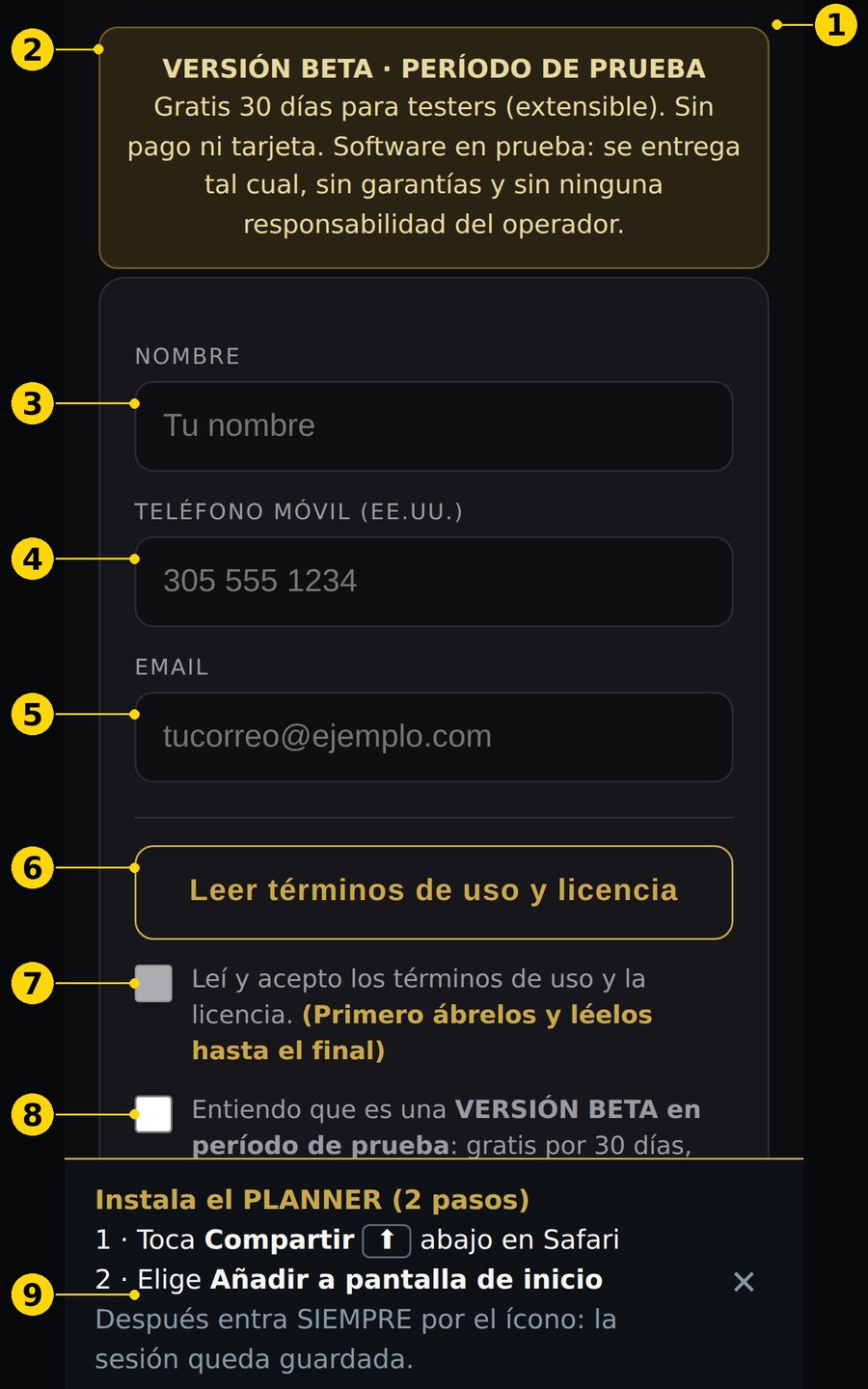
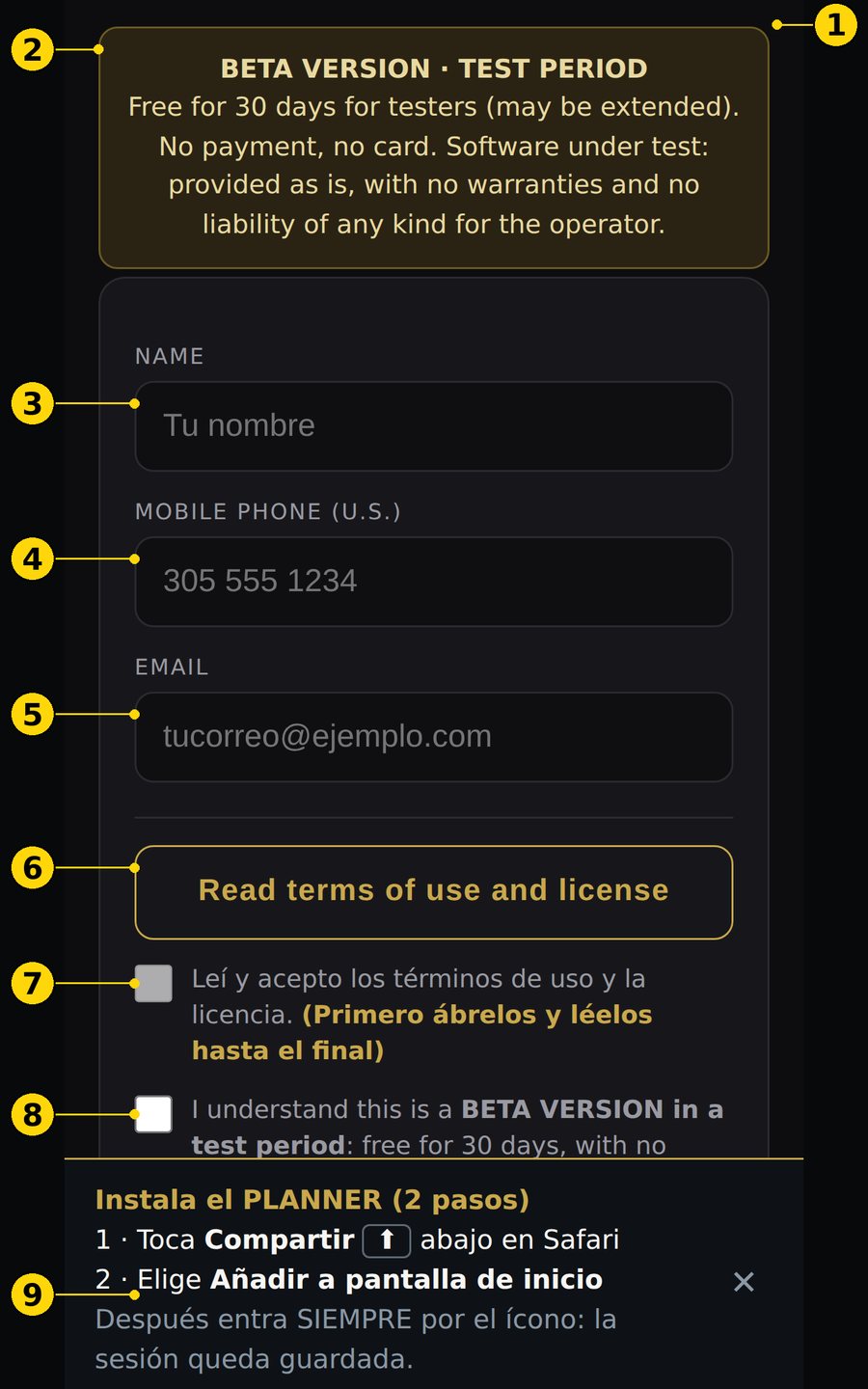
Escribe tu nombre, tu "Teléfono móvil (EE.UU.)" y tu email.
Toca "Leer términos de uso y licencia" y léelos hasta el final.
Marca las dos casillas: los términos y la versión BETA.
Toca "Recibir código por SMS". Te llega un código de 6 dígitos. Vence en 10 minutos.
Después verás "Tu licencia", un código como RM-XXXX-XXXX. Guárdalo: no se vuelve a mostrar. Tómale captura.
Si cambias de teléfono: toca "Ya tengo cuenta · entrar con mi número" o entra con tu licencia.
Figura 2.1 — ES: Acceso · EN: Sign-in. ① idioma ES/EN · ② aviso BETA · ③ nombre · ④ teléfono · ⑤ email · ⑥ leer términos · ⑦ casilla de términos · ⑧ casilla BETA · ⑨ "Recibir código por SMS"
2.2 El aviso BETA
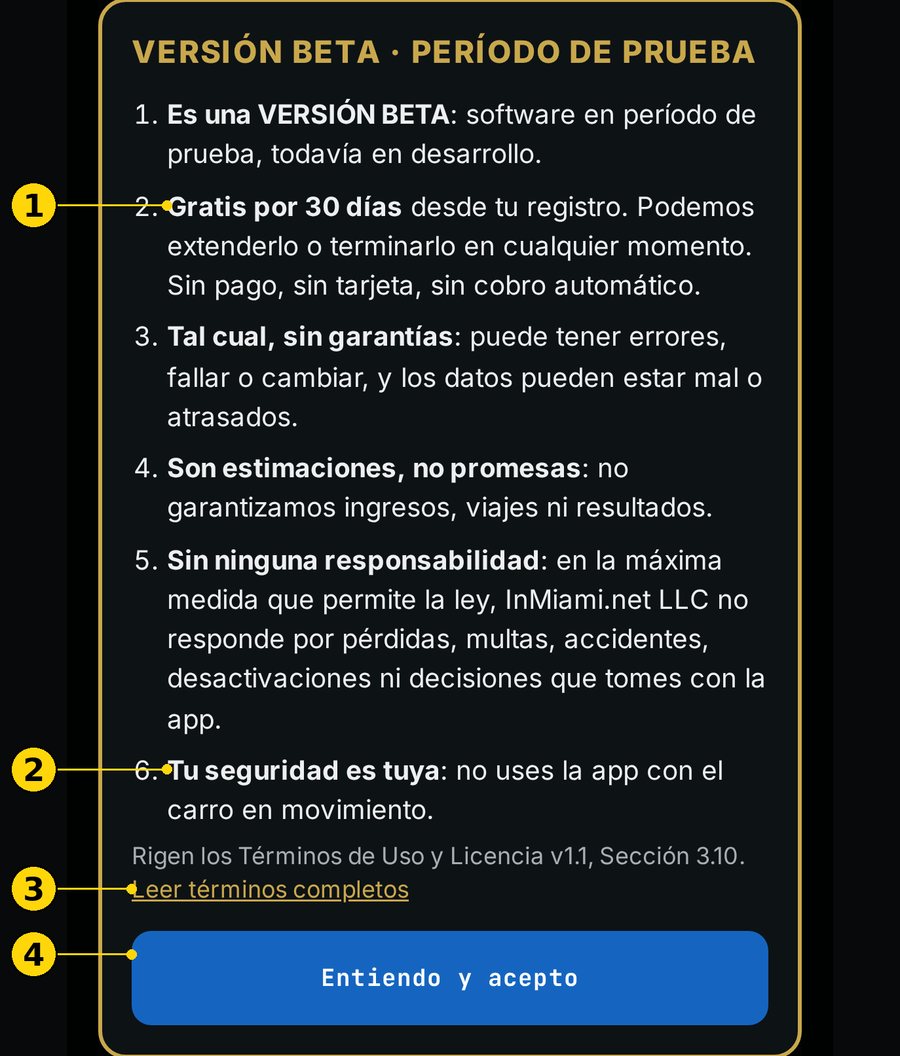
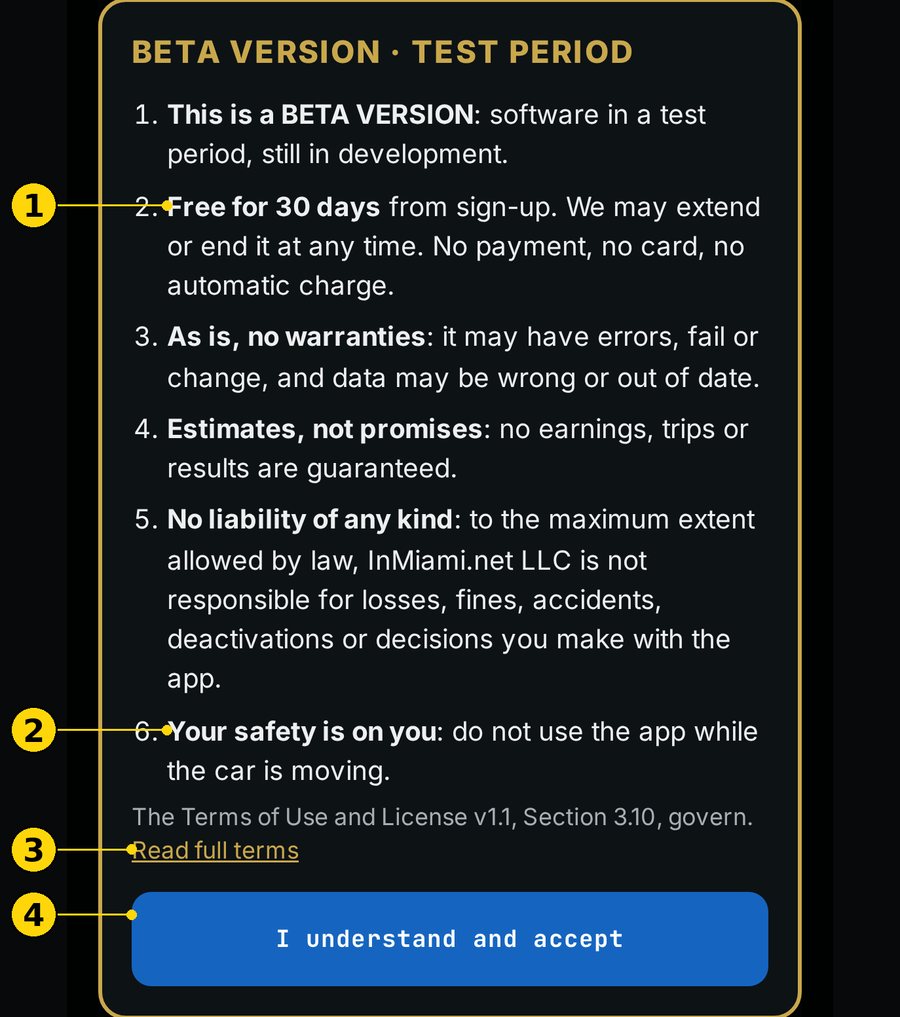
La primera vez que abres el Planner ves "VERSIÓN BETA · PERÍODO DE PRUEBA". Resume tus condiciones:
es software en prueba;
"Gratis por 30 días" desde tu registro;
son estimaciones, no promesas.
Toca "Entiendo y acepto" para seguir. El enlace "Leer términos completos" abre los términos.
Figura 2.2 — ES: Aviso BETA · EN: BETA notice. ① 30 días gratis · ② tu seguridad · ③ términos completos · ④ "Entiendo y acepto"
2.3 Instalar en la pantalla de inicio
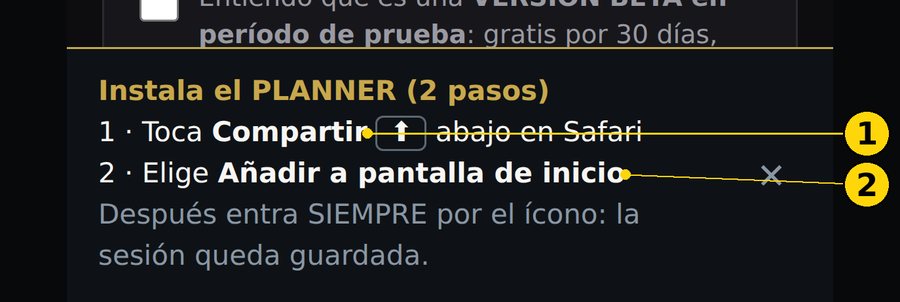
Instalado, el Planner abre como una app y tu sesión queda guardada.
iPhone (Safari):
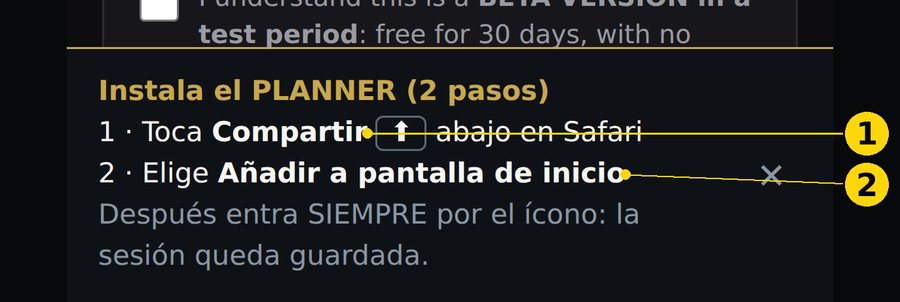
Toca Compartir ⬆︎, abajo en Safari.
Elige "Añadir a pantalla de inicio".
Entra siempre por el ícono.
Android (Chrome): toca el botón "INSTALAR" del aviso de abajo.
Desde WhatsApp o Instagram: el aviso te pide abrir el enlace en Safari o Chrome, porque ahí dentro la sesión no se guarda.
Figura 2.3 — ES: Instalar en iPhone · EN: Install on iPhone. ① Compartir · ② Añadir a pantalla de inicio
2.4 Tu ubicación
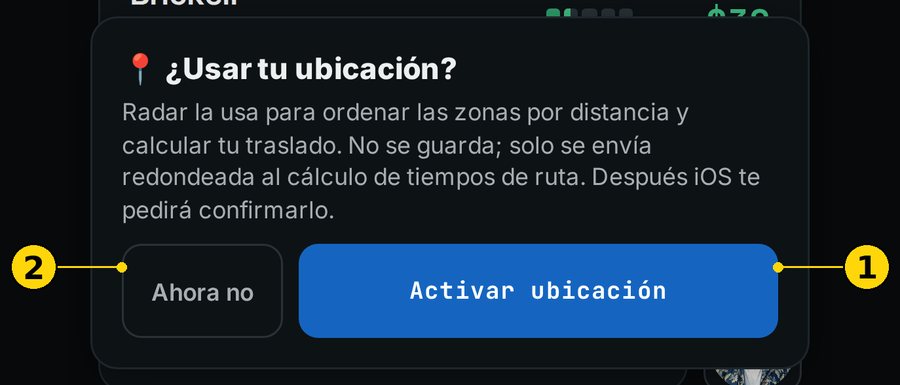
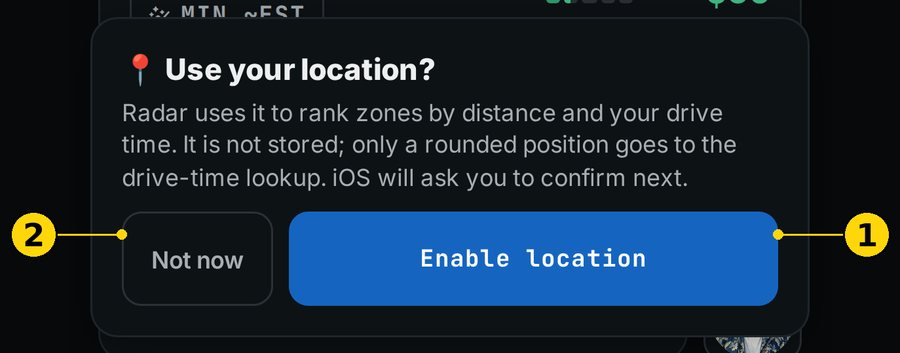
El Planner te pregunta "¿Usar tu ubicación?". La usa para ordenar las zonas por distancia y calcular tu traslado. No se guarda.
Toca "Activar ubicación": el $/h de cada zona descuenta el tiempo para llegar desde donde estás.
Toca "Ahora no": el Planner funciona igual, pero verás "GPS no disponible — activa ubicación para el costo de llegar", y los minutos de traslado son estimados.
Figura 2.4 — ES: Ubicación · EN: Location. ① "Activar ubicación" · ② "Ahora no"
2.5 Alertas (notificaciones)
Las alertas te avisan de barcos, eventos, tormentas y cierres aunque la app esté cerrada.
Para activarlas, primero llena tu teléfono y tu email en Ajustes → Perfil.
En iPhone, primero instala el Planner en la pantalla de inicio.
Si no las activas, el Planner funciona igual. Solo no te puede avisar.
2.6 Idioma y tamaño de letra
En Ajustes eliges "IDIOMA" (ES / EN) y "TAMAÑO DE LETRA" (A− / A+). La app recuerda tu elección.
2.7 El tutorial
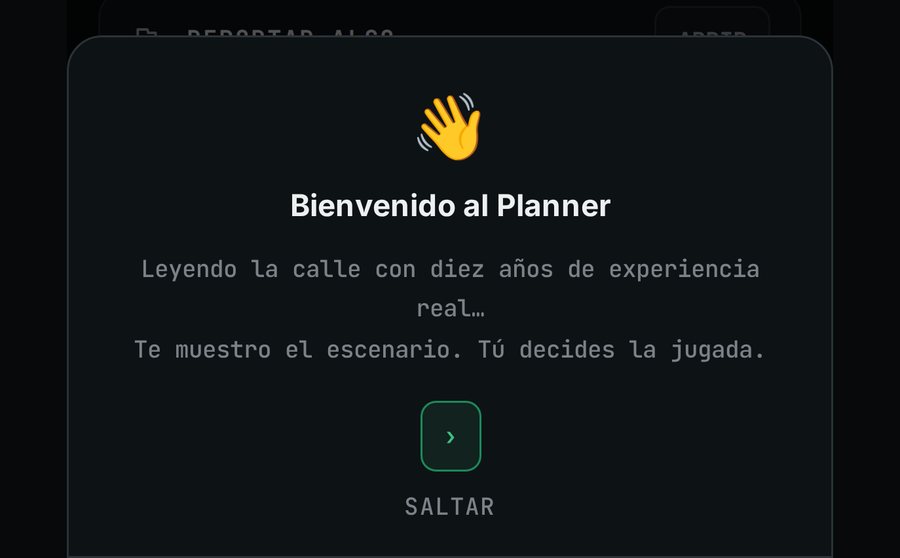
La primera vez ves un tutorial de 3 pasos. Puedes verlo otra vez en Ajustes → "TUTORIAL".
Figura 2.5 — ES: Tutorial · EN: Tutorial
3. Cómo leer el Planner
Esta es la sección más importante. Aquí aprendes a leer cada número.
3.1 Etiquetas de evidencia
Cada dato dice de dónde viene. La app lo resume así: "[V] dato verificado en vivo o en tu data · [I] estimación del modelo · [H] regla de experiencia".
Etiqueta
Qué quiere decir
Ejemplo real en la app
[V] verificado
Dato en vivo o de una fuente oficial.
"espera ~12 min entre viajes [V]" en el Copiloto
[I] estimado
El modelo lo calcula. Es una guía, no un hecho.
"ESTA ZONA · AHORA · ESTIMADO [I]" y "BANDA 50% $23–$38/HR [I]"
[H] experiencia
Regla de más de 10 años en la calle.
"Ventana estimada por experiencia [H]" en el Puerto
Insignias del traslado:
"MIN GPS": minutos medidos desde tu posición.
"MIN ~EST": minutos estimados, porque no hay GPS.
"MIN PATRÓN": minutos según el patrón de esa hora.
Figura 3.1 — ES: Etiquetas · EN: Labels. ① estimado [I] · ② banda [I] · ③ dato verificado [V] · ④ insignia de traslado
3.2 Frescura: qué tan nuevo es el dato
Arriba a la derecha hay un chip que te dice si los datos están al día.
Lo que ves
Qué significa
Qué hacer
"LIVE"
Todo actualizado en los últimos 30 min.
Nada.
"PARCIAL ⚠" + número
Una o más fuentes fallaron en los últimos 30 min.
Desconfía de lo que dependa de esa fuente.
"↻ hace N min"
Pasaron 30 min o más sin actualizar.
Revisa tu señal o abre de nuevo la app.
"· foto Nh"
La base de calendario y barcos tiene más de 2 h.
Lo en vivo sigue al minuto.
"◷ datos de hace Nh"
La base tiene más de 4,5 h.
Toma los números como orientación.
Figura 3.2 — ES: Frescura · EN: Freshness. ① clima y lluvia · ② chip "LIVE · foto 2h" (captura de la v11.25.1)
3.3 Niveles y colores
Score de zona (0–100). Mide qué tanta oportunidad hay en una zona. No mide precio ni surge.
Nivel
Score
MUY FUERTE
80–100
FUERTE
60–79
NORMAL
35–59
FLOJO
0–34 (se pinta gris, no rojo)
Termómetro del aeropuerto (MIA). Compara las llegadas con lo normal para esa hora. Va de frío a caliente:
"CONGELADO": llega menos gente de lo normal. La cola va a ser larga.
"EN CONTROL": llegadas cerca de lo normal.
"CALIENTE": llega más gente de lo normal.
"DESCONTROL": llega mucha más gente de lo normal. [POR CONFIRMAR: el umbral exacto]
Otros estados: "VIGILANCIA", "TORMENTA", "REAPERTURA", "SIN DATO", "SIN BASE (12–16)" y "FUERA DE FRANJA".
Termómetro del puerto. Usa la escala por pasajeros del día [H]:
Nivel en pantalla
Pasajeros
CONGELADO
menos de 2.500: no hay ventana de puerto
LEVE
2.500–5.000
EN CONTROL
5.000–10.000
CALIENTE
10.000–18.000
DESCONTROL + insignia "MEGA PUERTO [I]"
18.000 o más
3.4 El índice del día (IOD)
El IOD va de 1 a 10. Dice cómo pinta el día completo según eventos, barcos, feriados y temporada.
IOD
Cómo lo lee DAD
9–10
"día grande"
7–8
"buen día"
5–6
"día normal"
1–4
"día flojo"
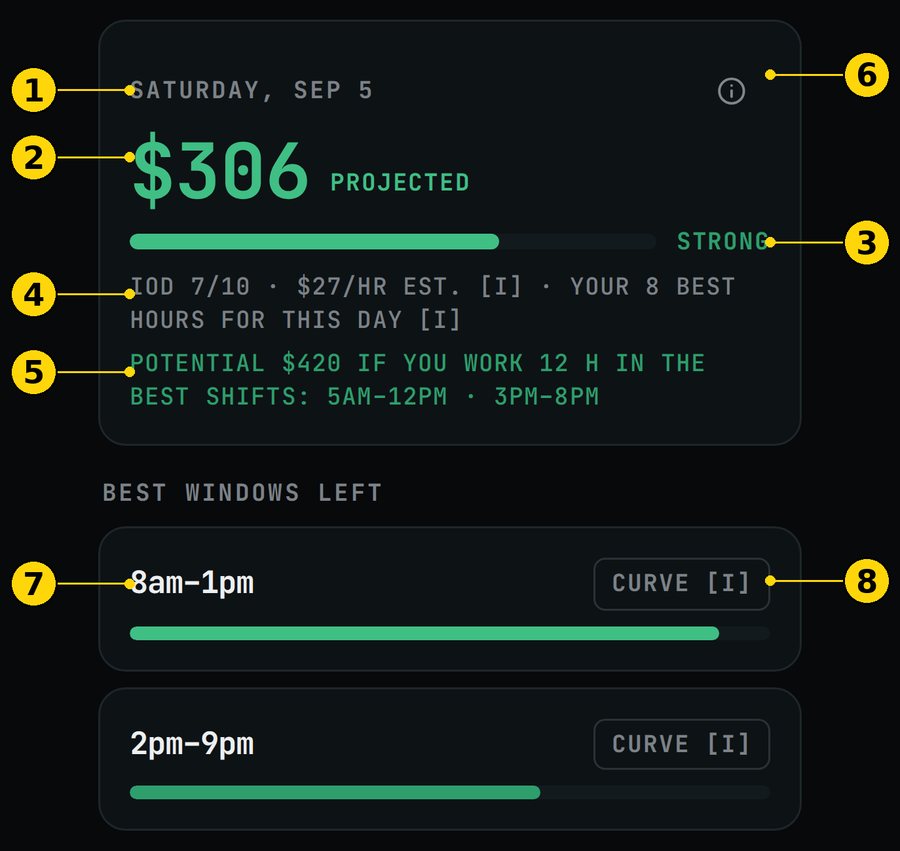
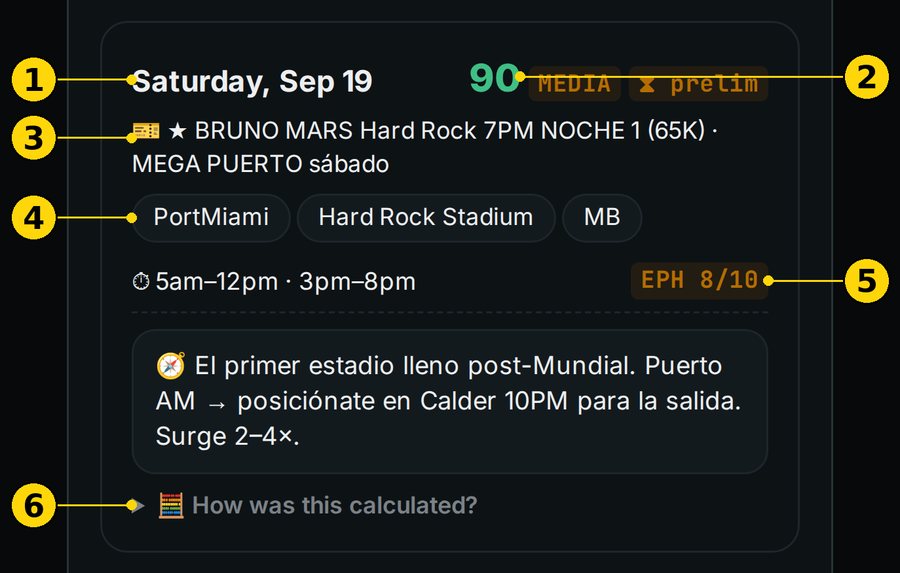
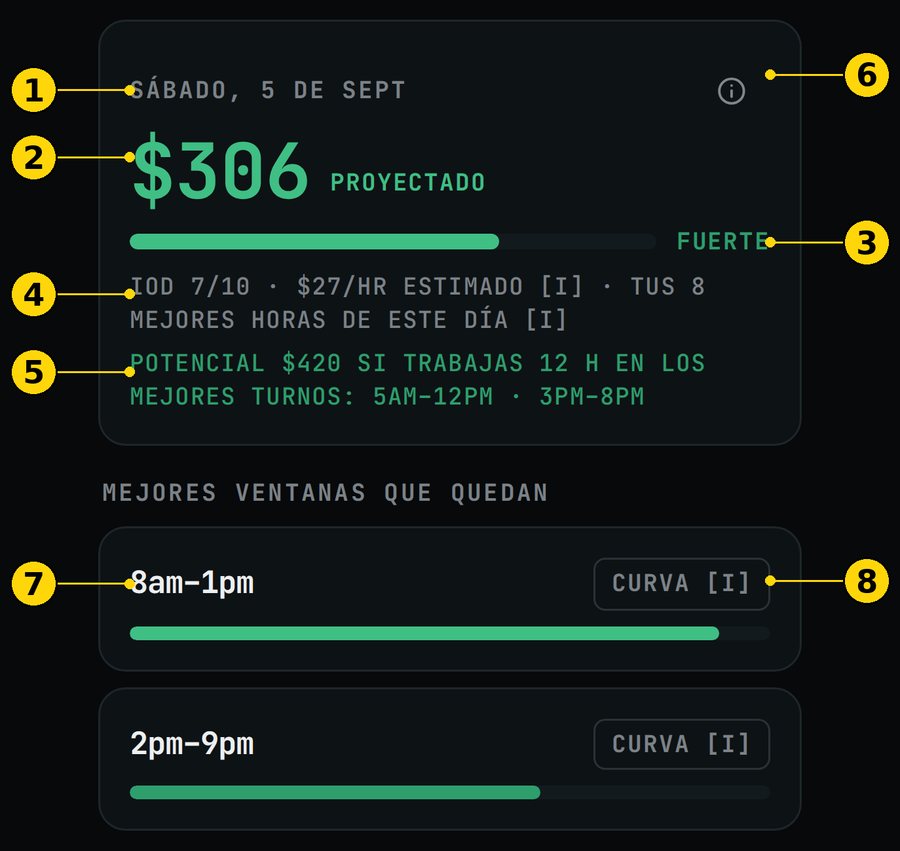
Figura 3.4 — ES: Tarjeta del día · EN: Day card. ① fecha · ② $ "PROYECTADO" · ③ nivel · ④ IOD y $/h · ⑤ "POTENCIAL" de 12 h · ⑥ cómo se arma · ⑦ ventana · ⑧ "CURVA [I]"
3.5 El $/h estimado
Es $/h de horas productivas: horas con pasajero.
No incluye el tiempo conectado sin viaje. Tampoco la gasolina ni los gastos del carro.
Está calibrado con 667 días y 5.620 viajes reales [V], pero el número de hoy es un estimado [I].
"AHORA −TRASL." = ajustado por traslado: le resta el tiempo de llegar a la zona desde donde estás. No descuenta nada más.
"BANDA 50%": la mitad de las veces, el resultado cae entre esos dos números.
Figura 3.5 — ES: $/h ajustado por traslado · EN: $/h adjusted for drive time. Ver la figura 4.2.
4. Las 6 pestañas
La barra de abajo tiene, en este orden: Copiloto · Agenda · Mapa · Horas · Viajeros · Ajustes.
4.1 Copiloto
4.1.1 El Mandato (veredicto de ahora)
Nombre en pantalla: "MANDATO" / "MANDATE".
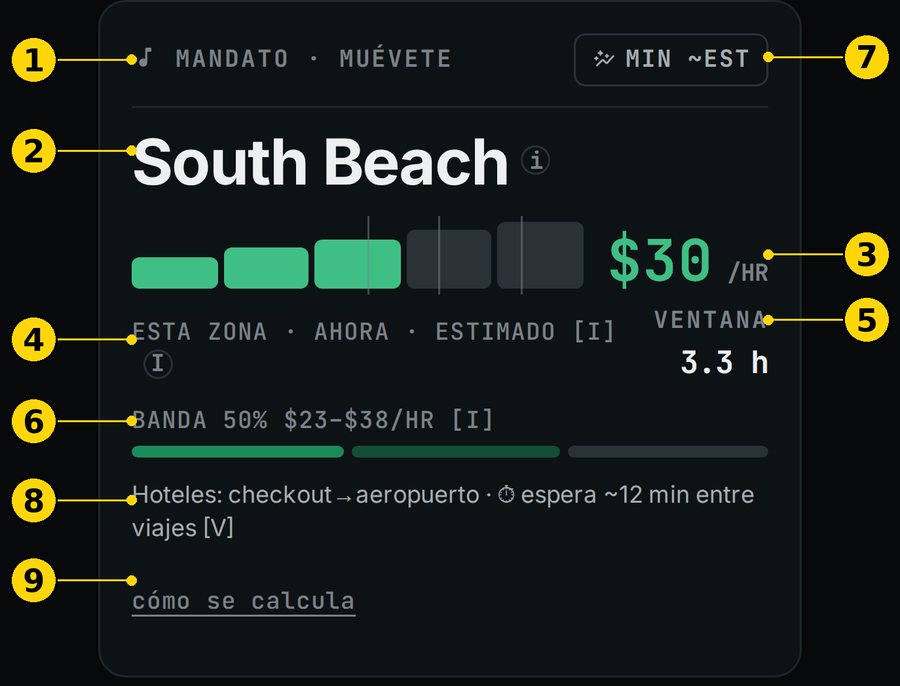
Qué es: la orden del momento: "QUÉDATE", "MUÉVETE" o "ESPERA … y muévete".
Para qué te sirve: decidir en un vistazo si vale la pena moverte.
Cómo se lee:
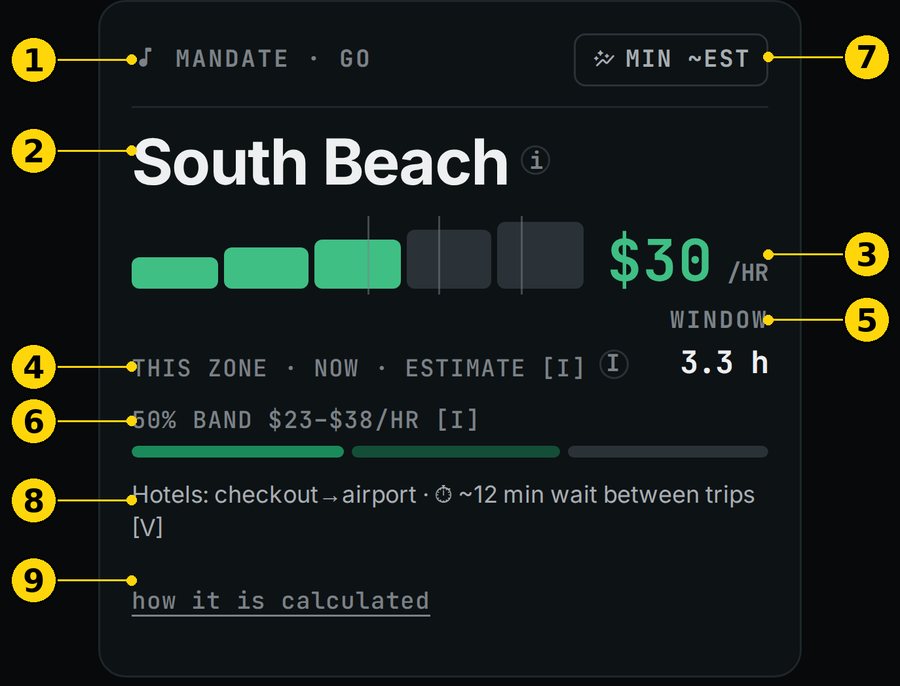
La zona (por ejemplo, South Beach) y su $/h estimado.
"ESTA ZONA · AHORA · ESTIMADO [I]": el $/h es un estimado de esa zona, ahora.
"VENTANA": cuántas horas le quedan a esa oportunidad.
"BANDA 50%": el rango probable del $/h.
La línea de abajo: el porqué, por ejemplo "Hoteles: checkout→aeropuerto", y la espera entre viajes [V].
"cómo se calcula": abre la explicación.
Cuándo mirarla: cada vez que te detienes o terminas un viaje.
Límites:
Es un escenario [I], no una promesa.
Si ninguna zona se despega, verás "Ahora mismo no veo ventaja clara." y la mejor zona del momento. Esperar también es una jugada.
Figura 4.1 — ES: Mandato · EN: Mandate. ① orden · ② zona · ③ $/h · ④ estimado [I] · ⑤ ventana · ⑥ banda 50% · ⑦ insignia de traslado · ⑧ porqué y espera [V] · ⑨ "cómo se calcula"
4.1.2 La tabla de zonas
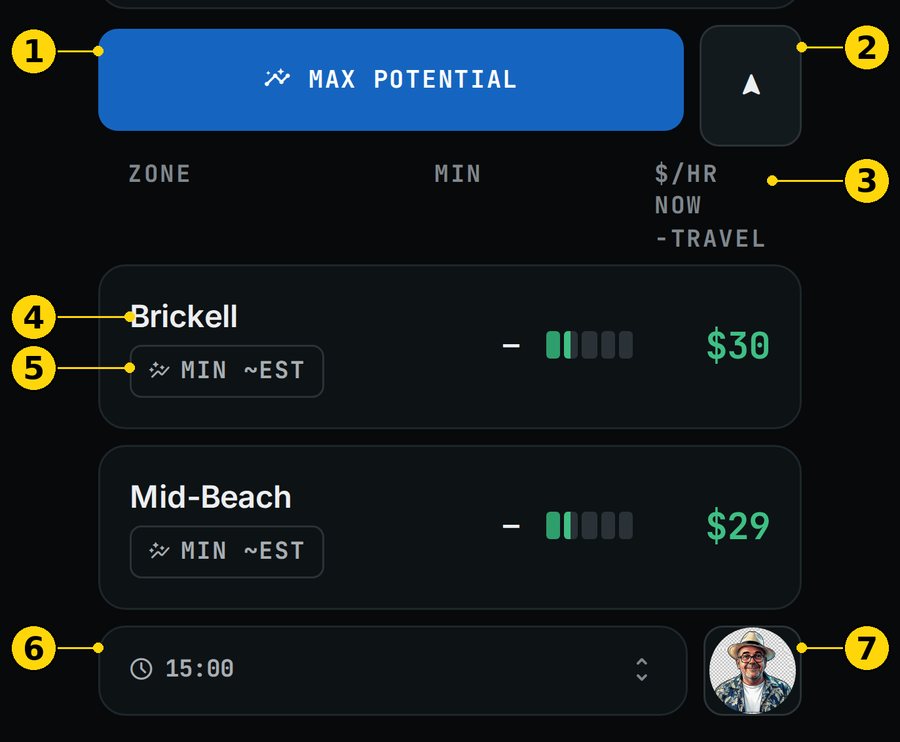
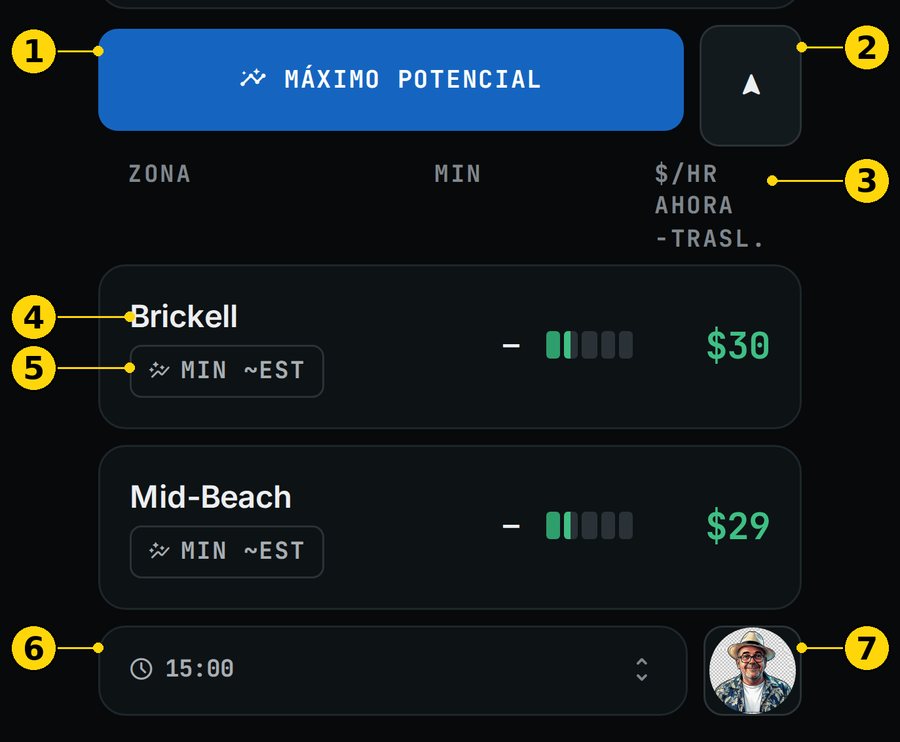
Nombre en pantalla: "ZONA · MIN · $/HR AHORA −TRASL." / "ZONE · MIN · $/HR NOW −TRAVEL".
Qué es: las zonas ordenadas con su $/h ajustado por traslado.
Para qué te sirve: comparar tu zona con las demás.
Cómo se lee:
"MIN": minutos para llegar.
Las barras: el nivel de la zona.
El $: estimado, ya ajustado por traslado.
Toca una fila: se abre en el Mapa.
Cuándo mirarla: cuando el Mandato dice "MUÉVETE" y quieres ver otras opciones.
Límites: sin GPS, los minutos son estimados ("MIN ~EST").
Figura 4.2 — ES: Tabla de zonas · EN: Zone table. ① "MÁXIMO POTENCIAL" · ② abrir la zona del Mandato en Maps · ③ $/h ajustado por traslado · ④ zona · ⑤ insignia de traslado · ⑥ tira de hitos · ⑦ DAD
4.1.3 La línea de tiempo del turno
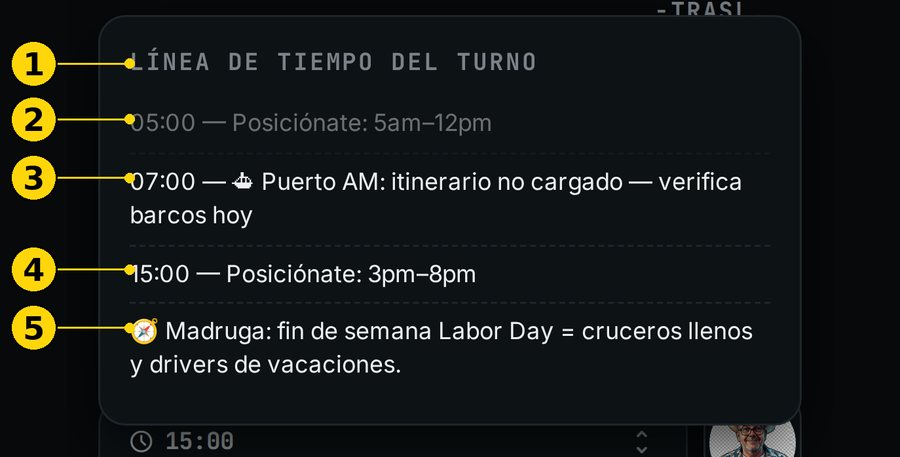
Nombre en pantalla: "LÍNEA DE TIEMPO DEL TURNO" / "SHIFT TIMELINE".
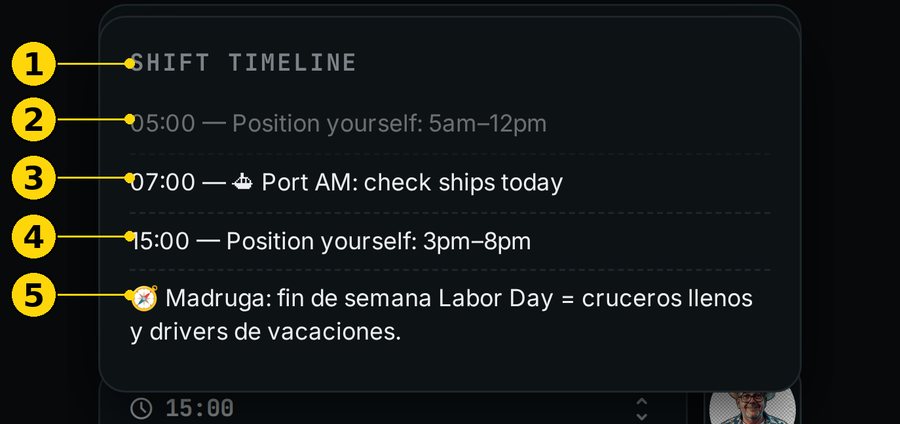
Qué es: los hitos del día con su hora: barcos, salidas de eventos y "Posiciónate".
Para qué te sirve: saber qué viene y a qué hora moverte.
Cómo se lee:
Toca la tira de abajo para abrirla.
Cada línea tiene una hora y un hito.
Si no hay nada, dice "SIN HITOS HOY".
Cuándo mirarla: al empezar el turno y cada pocas horas.
Límites: las horas de salida de los eventos son estimadas.
Figura 4.3 — ES: Línea de tiempo · EN: Shift timeline. ① título · ②–④ hitos con hora · ⑤ táctica del día
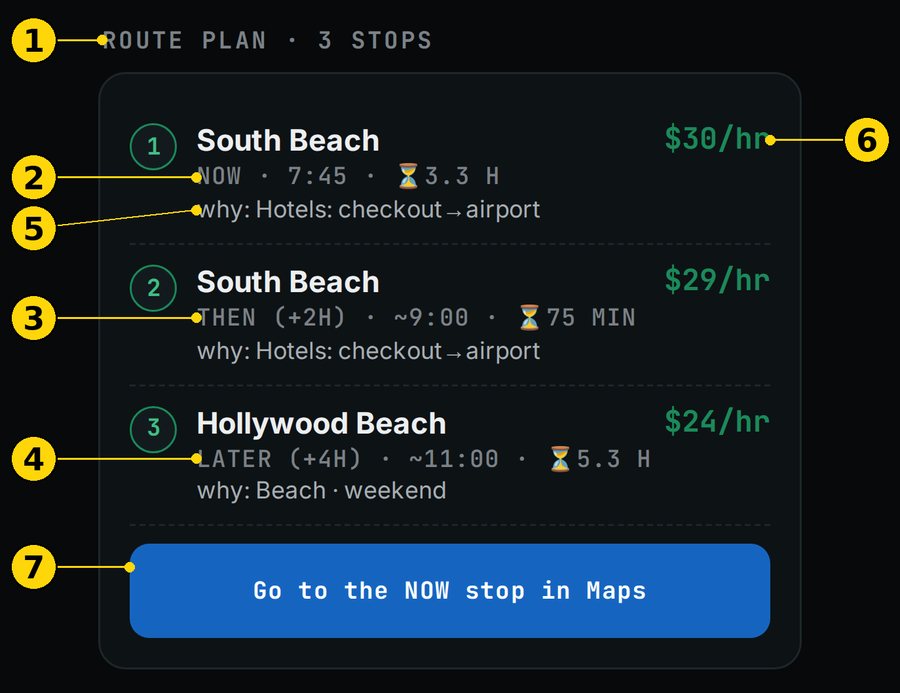
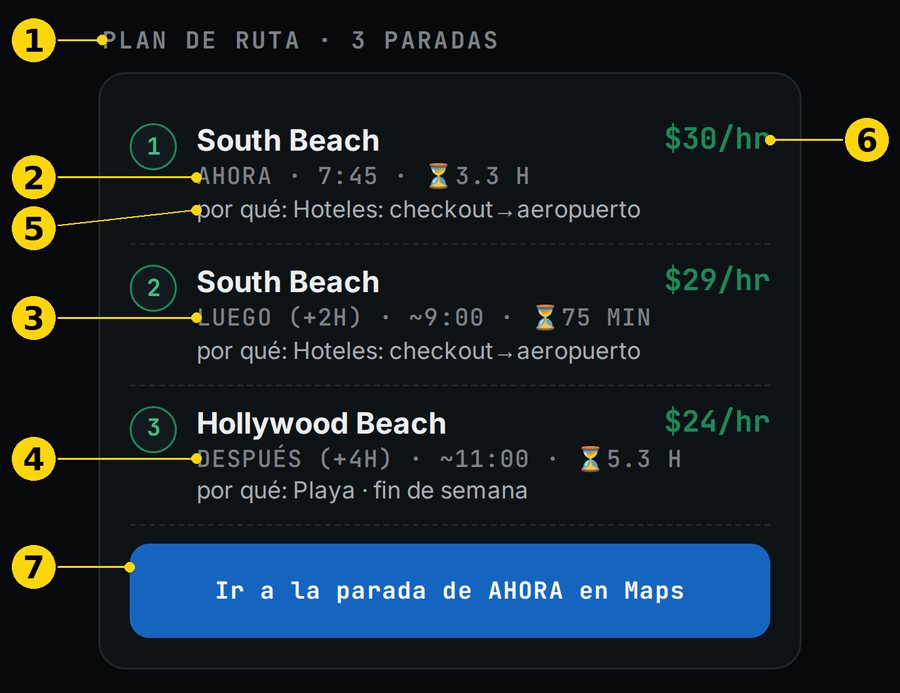
4.1.4 Plan de ruta de 3 paradas
Nombre en pantalla: "PLAN DE RUTA · 3 PARADAS" / "ROUTE PLAN · 3 STOPS".
Qué es: tres paradas: "AHORA", "LUEGO (+2h)" y "DESPUÉS (+4h)".
Para qué te sirve: tener el turno pensado, no solo el próximo viaje.
Cómo se lee:
Cada parada trae la zona, la hora, la ventana (⏳) y el $/h estimado.
"por qué": la razón de esa parada.
"Ir a la parada de AHORA en Maps": abre la navegación.
Cuándo mirarla: al empezar y cuando cambie la orden.
Límites: las paradas de +2h y +4h son proyecciones. Pueden cambiar con el tráfico y los eventos en vivo.
Figura 4.4 — ES: Plan de ruta · EN: Route plan. ① título · ② AHORA · ③ LUEGO (+2h) · ④ DESPUÉS (+4h) · ⑤ por qué · ⑥ $/h · ⑦ ir en Maps
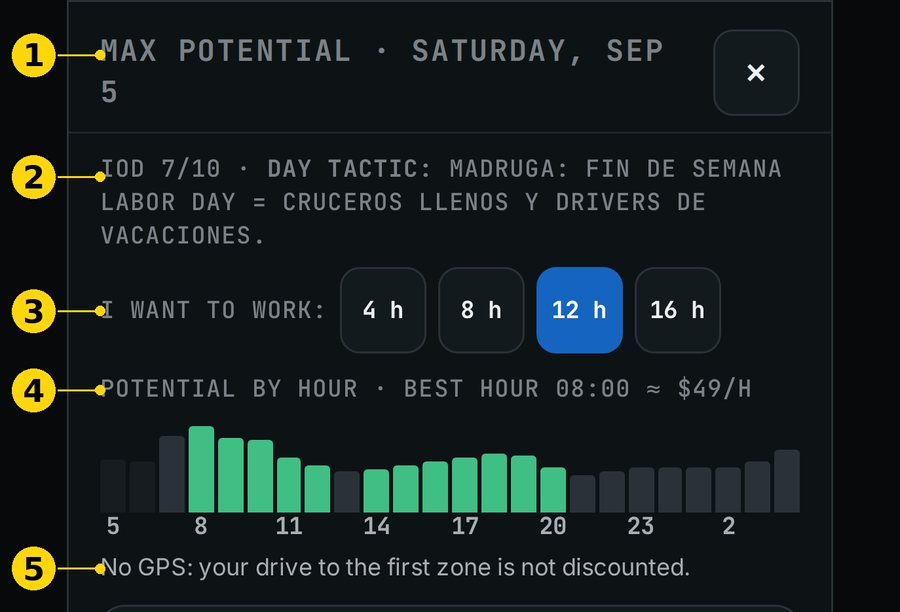
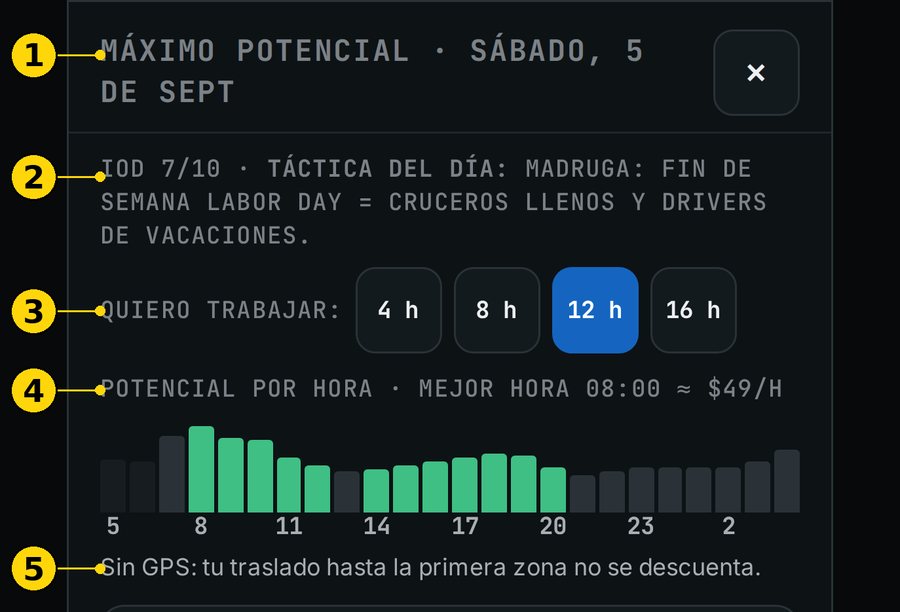
4.1.5 Máximo Potencial
Nombre en pantalla: "MÁXIMO POTENCIAL" / "MAX POTENTIAL".
Qué es: tu hoja de trabajo del día con los mejores bloques de horas.
Para qué te sirve: decidir cuántas horas trabajar y cuáles.
Cómo se lee (parte de arriba):
"Quiero trabajar": 4 h, 8 h, 12 h o 16 h.
"POTENCIAL POR HORA": la curva del día. Dice la "mejor hora".
Sin GPS, verás: "Sin GPS: tu traslado hasta la primera zona no se descuenta."
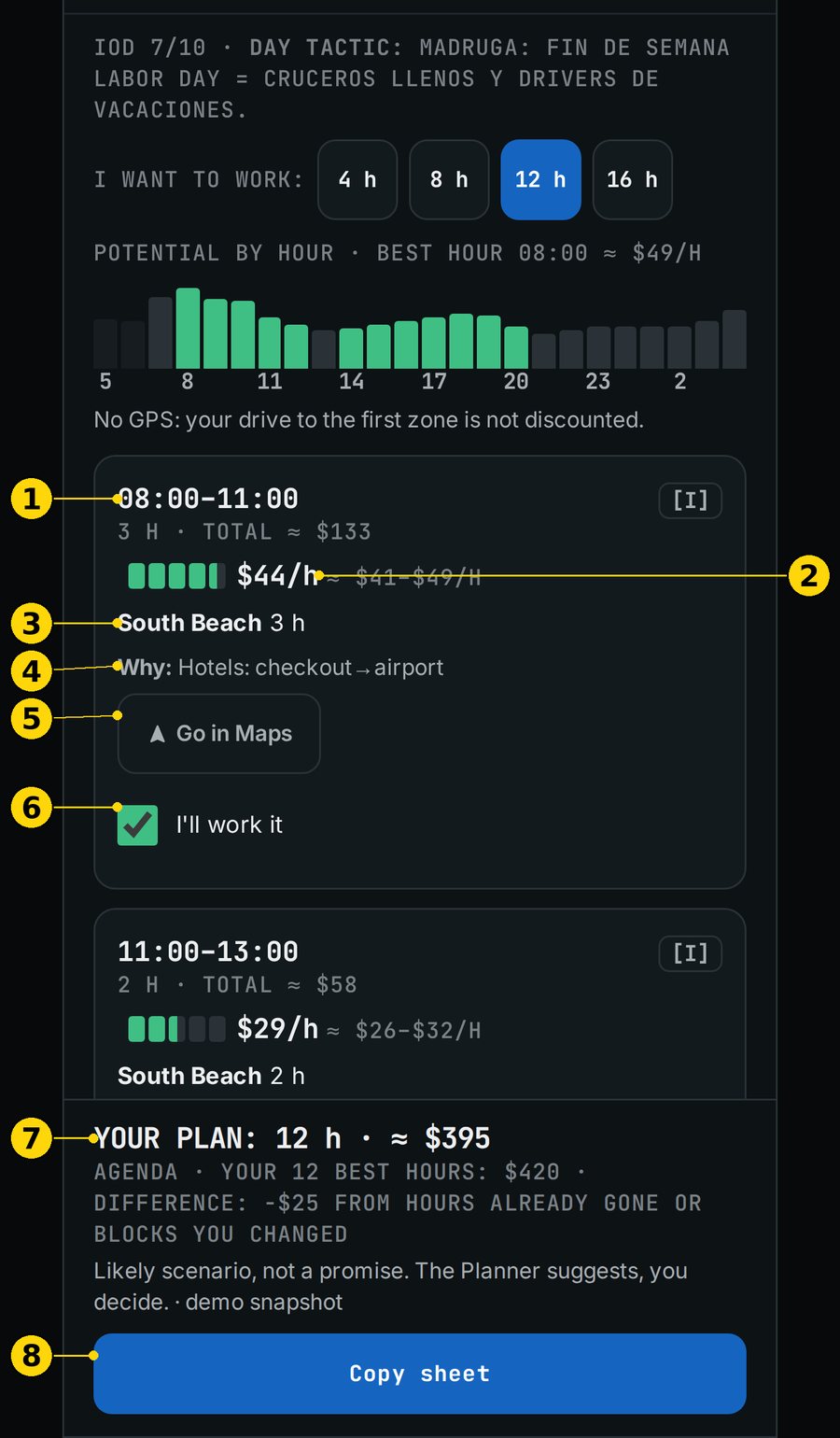
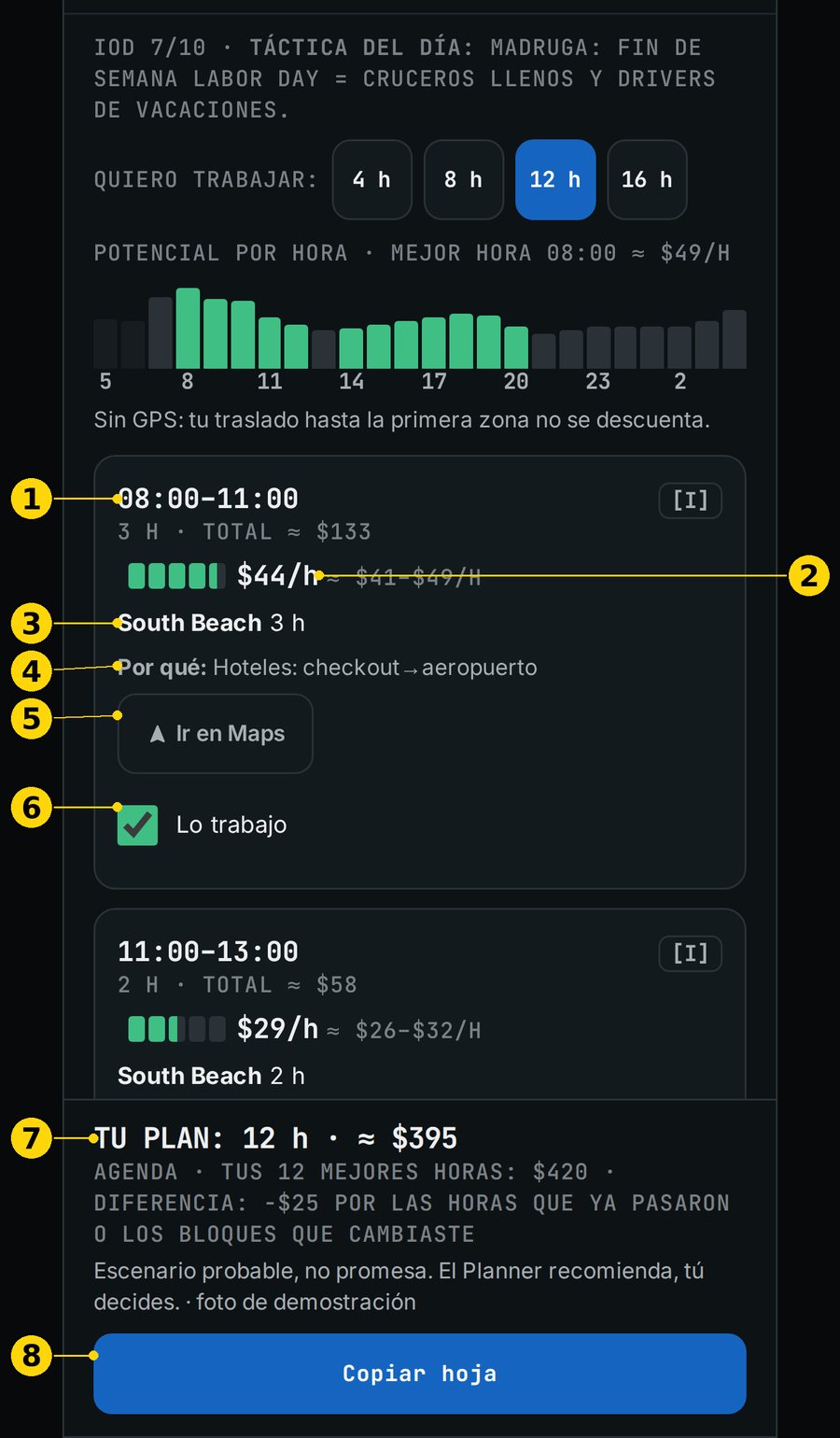
Cómo se lee (bloques):
Cada bloque trae horario, horas, total y $/h estimado con su rango [I].
También la zona y el "Por qué".
"EN CURSO" marca el bloque que ya empezó, y "OPCIONAL" el que puedes saltar.
"Ir en Maps" te lleva a esa zona.
"Lo trabajo": marca o desmarca el bloque.
"TU PLAN": suma tus horas y el total estimado. Lo compara con la Agenda y explica la "diferencia" por las horas que ya pasaron o los bloques que cambiaste.
"Copiar hoja": copia tu plan para pegarlo donde quieras.
Cuándo mirarlo: antes de salir, para armar el día.
Límites:
Es un escenario.
Si pasas de 12 h verás "⚠ Pasas de 12 h de manejo", porque las plataformas cortan a las 12 h de manejo.
Figura 4.5 — ES: Máximo Potencial · EN: Max Potential. ① título · ② IOD y táctica · ③ "Quiero trabajar" 4/8/12/16 h · ④ curva · ⑤ aviso sin GPSFigura 4.6 — ES: Bloques y TU PLAN · EN: Blocks and YOUR PLAN. ① horario · ② $/h y rango · ③ zona · ④ por qué · ⑤ "Ir en Maps" · ⑥ "Lo trabajo" · ⑦ "TU PLAN" · ⑧ "Copiar hoja"
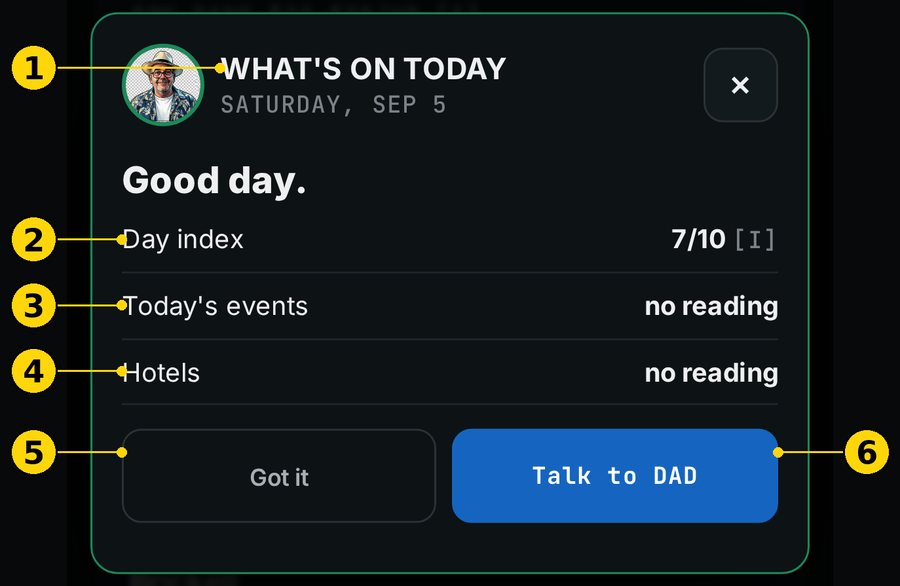
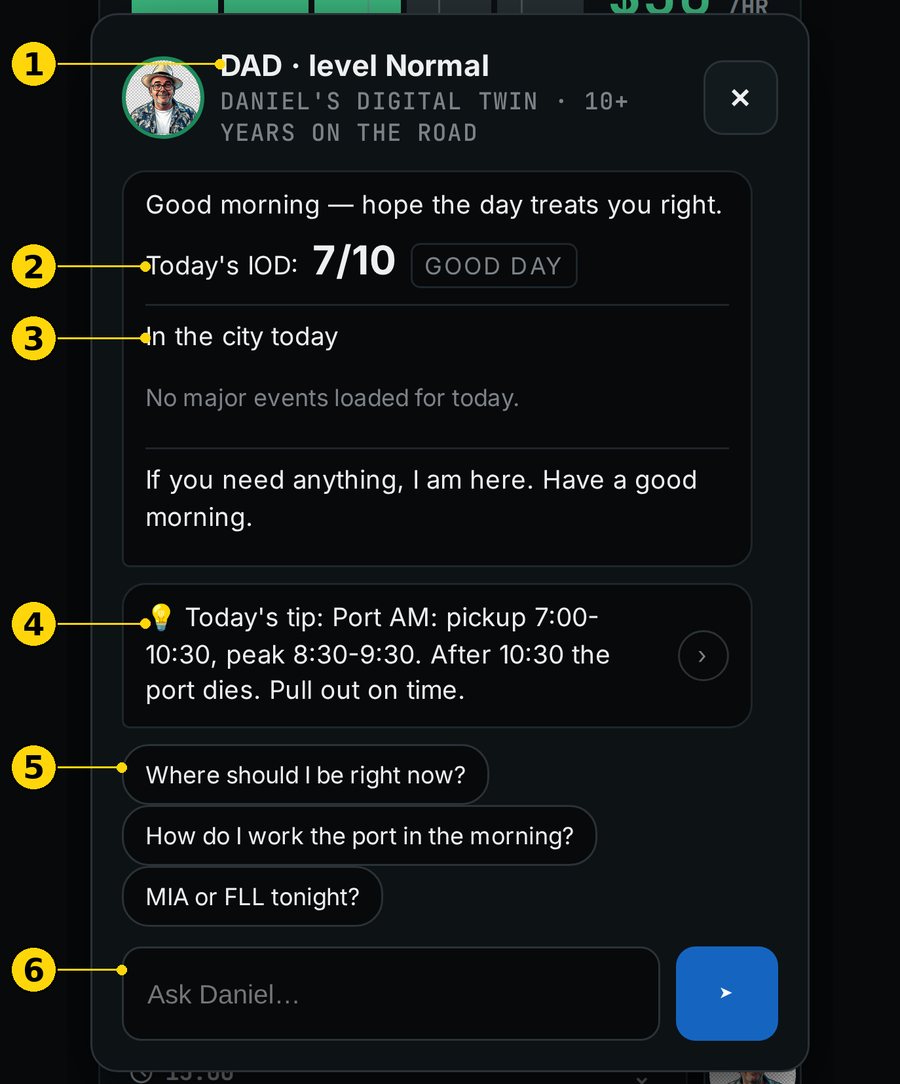
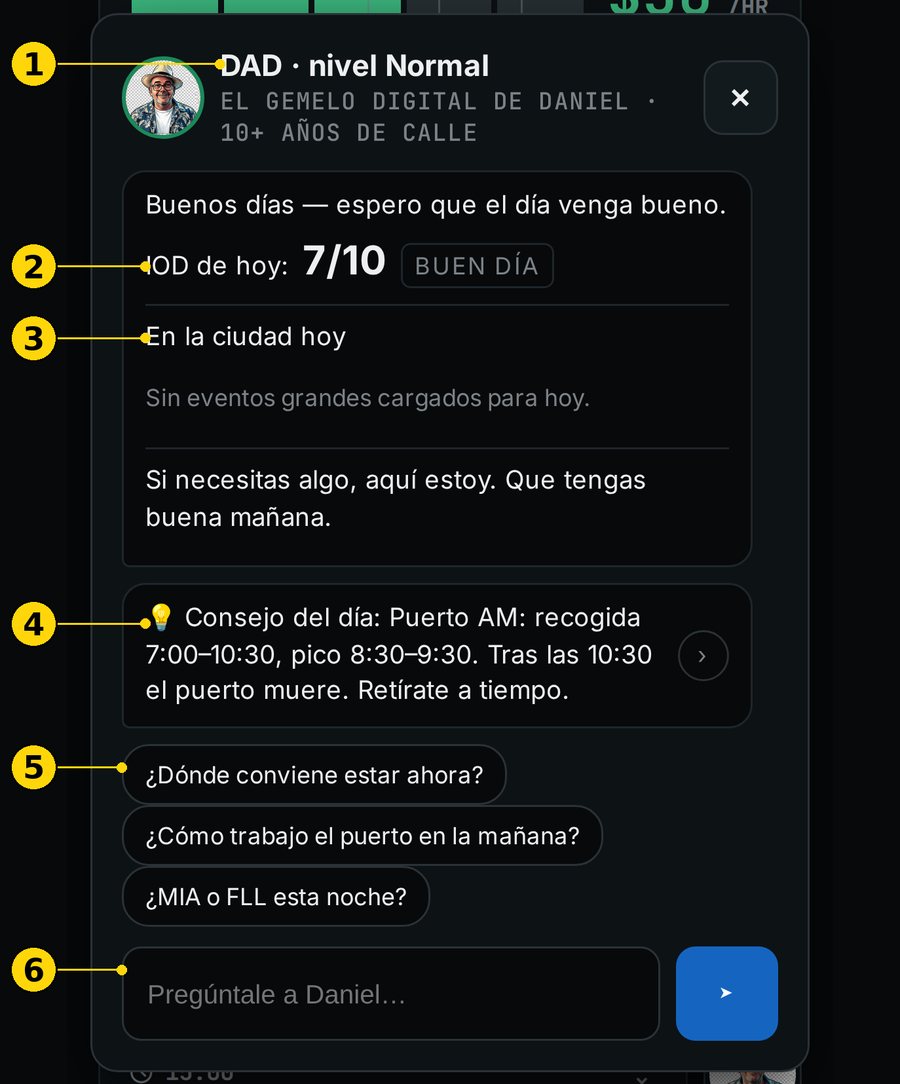
4.1.6 DAD: el chat con Daniel
Nombre en pantalla: DAD, "El gemelo digital de Daniel · 10+ años de calle".
Qué es: un asistente en español o en inglés.
Para qué te sirve: preguntar dudas del turno como a un compañero del lote.
Cómo se lee:
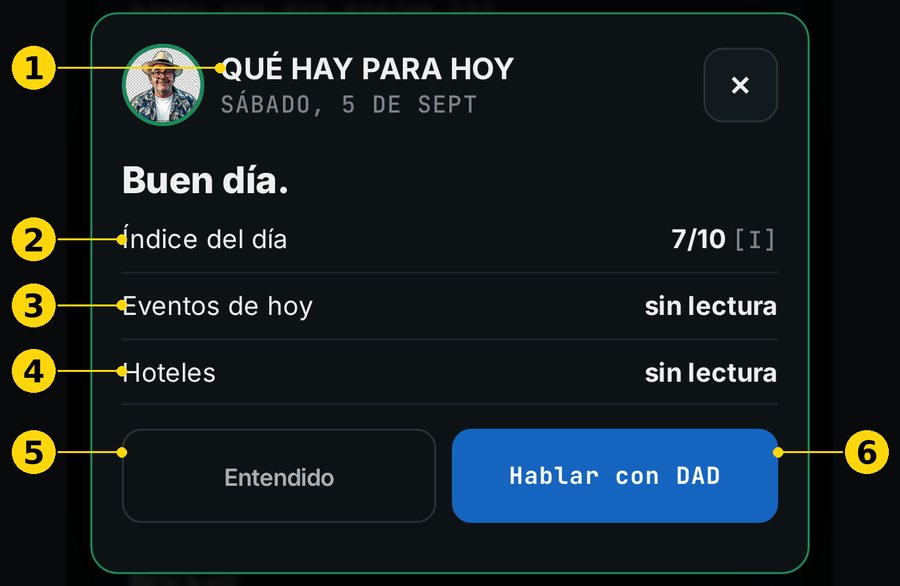
"QUÉ HAY PARA HOY": una vez al día, DAD abre solo con el "Índice del día", los "Eventos de hoy" y los "Hoteles".
Si vas manejando, ese aviso espera a que te detengas.
Puedes abrir DAD cuando quieras con su botón.
Toca "Entendido" o "Hablar con DAD".
En el chat: "Consejo del día", sugerencias para tocar y "Pregúntale a Daniel…".
Cuándo mirarlo: con el carro detenido.
Límites:
Responde con conexión.
Si se cae, te lo dice en vez de inventar.
Sus cifras son estimados.
Figura 4.7 — ES: QUÉ HAY PARA HOY · EN: WHAT'S ON TODAY. ① título · ② índice del día · ③ eventos · ④ hoteles · ⑤ "Entendido" · ⑥ "Hablar con DAD"Figura 4.8 — ES: Chat con DAD · EN: DAD chat. ① DAD y su nivel · ② IOD de hoy · ③ en la ciudad hoy · ④ consejo del día · ⑤ sugerencias · ⑥ escribe tu pregunta
4.1.7 Avisos que cambian la orden
El Copiloto pone un aviso arriba cuando algo pesa más que el $/h:
"MODO EMERGENCIA — NWS" o "TORMENTA ACTIVA · SCORE NO ACCIONABLE": el score queda en pausa.
"AVISO GRAVE DE INUNDACIÓN (NWS) · EVITA ZONAS BAJAS".
"Aviso de inundación costera (NWS) · informativo, no cambia el plan".
"MACARTHUR Y TUTTLE CERRADOS · ISLA ATRAPADA: SI ESTÁS DENTRO, QUÉDATE".
"CIERRE EN … · REPLANTEA ACCESO".
Límite: dependen del Servicio Meteorológico Nacional y del tráfico en vivo. Si la fuente cae, lo verás en el chip de frescura.
4.2 Agenda
4.2.1 La tarjeta del día
Nombre en pantalla: fecha + "PROYECTADO" / "PROJECTED".
Qué es: cuánto puede dar el día y qué tan fuerte viene.
Para qué te sirve: decidir si hoy vale la pena salir y cuánto.
Cómo se lee:
$ "PROYECTADO" con la barra de nivel.
El IOD y el $/h estimado de "TUS 8 MEJORES HORAS DE ESTE DÍA [I]".
"POTENCIAL … SI TRABAJAS 12 H EN LOS MEJORES TURNOS".
La ⓘ: abre "¿Cómo se arma el día?".
Cuándo mirarla: la noche antes o al despertar.
Límites: "PROYECTADO · ESTIMADO, NO PROMESA".
Ver la figura 3.4.
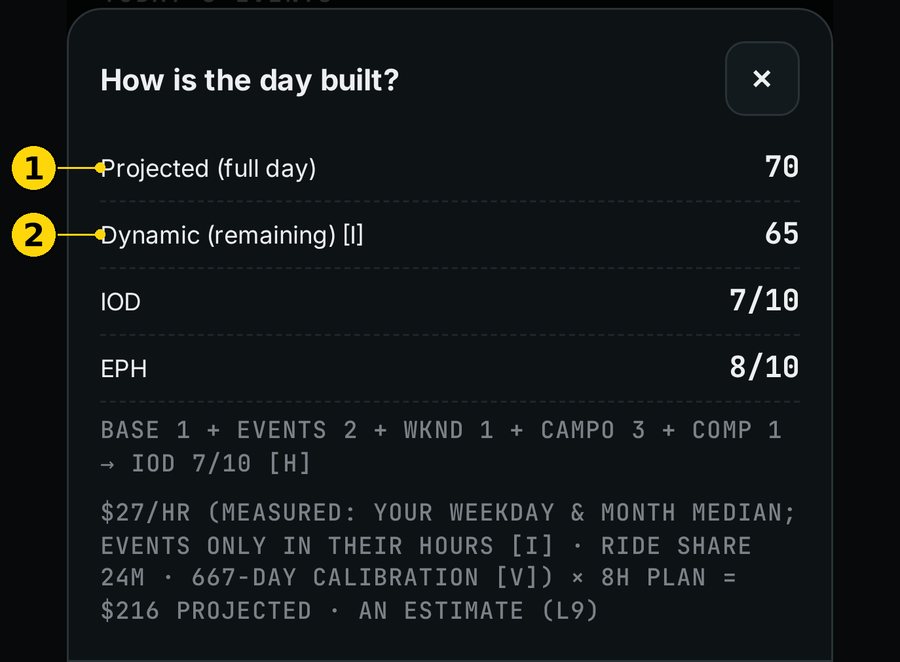
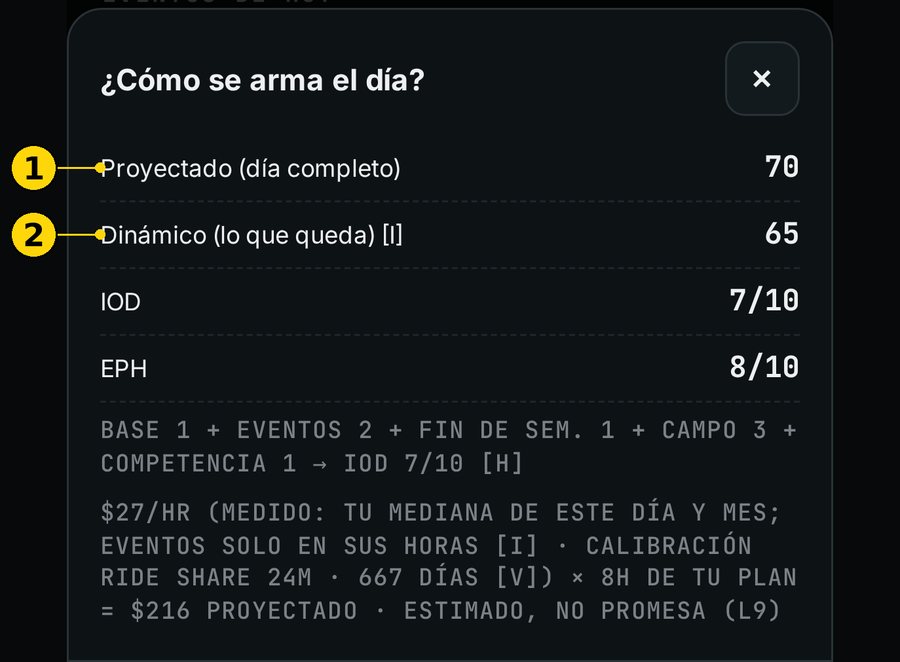
4.2.2 ¿Cómo se arma el día?
Qué es: el desglose del día.
Cómo se lee:
"Proyectado (día completo)": el día entero.
"Dinámico (lo que queda)": solo lo que falta.
Los dos números pueden ser distintos (ver 6.4).
Figura 4.9 — ES: ¿Cómo se arma el día? · EN: How is the day built? ① proyectado · ② dinámico
4.2.3 Mejores ventanas que quedan
Nombre en pantalla: "MEJORES VENTANAS QUE QUEDAN" / "BEST WINDOWS LEFT".
Qué es: las franjas fuertes que todavía no pasan.
Para qué te sirve: planear a qué hora estar en la calle.
Cómo se lee:
La franja y una barra de fuerza.
"CURVA [I]": sale de la curva estimada.
"YA PASÓ": la franja ya pasó.
Límites: son estimados [I].
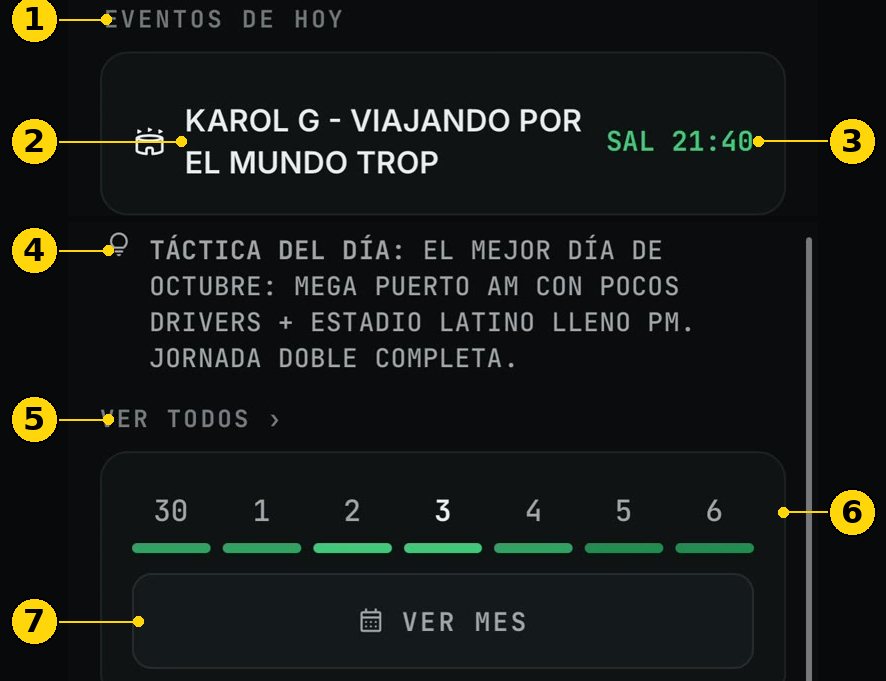
4.2.4 Eventos de hoy y su ficha
Nombre en pantalla: "EVENTOS DE HOY" / "TODAY'S EVENTS".
Qué es: los eventos del día con la hora de salida ("SAL"). La salida es el pico.
Para qué te sirve: estar cerca cuando sale la gente.
Cómo se lee:
Toca un evento para abrir su ficha: "Lugar", "Zona", "Inicio", "Fin estimado" (con la hora de salida), "Público aprox." y "Fuente".
"VER TODOS" abre la lista completa.
Límites: la hora de salida y el público son estimados.
Figura 4.10 — ES: Eventos y táctica · EN: Events and tactic. ① eventos de hoy · ② evento · ③ hora de salida · ④ táctica del día · ⑤ ver todos · ⑥ tira de la semana · ⑦ ver mes. Captura de la v11.25.1, recortada.
4.2.5 Táctica del día
Nombre en pantalla: "TÁCTICA DEL DÍA" / "DAY TACTIC".
Qué es: el consejo del día en una frase.
Para qué te sirve: entender qué hace distinto a hoy.
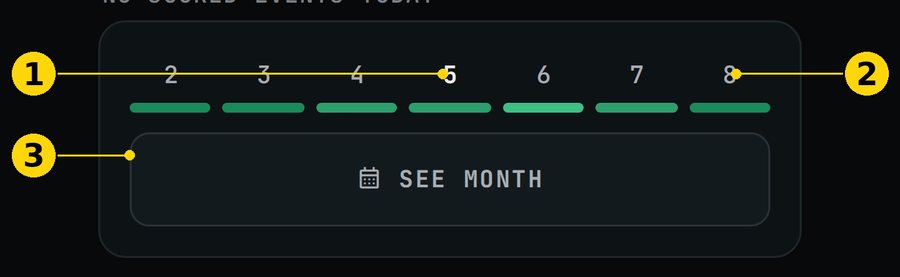
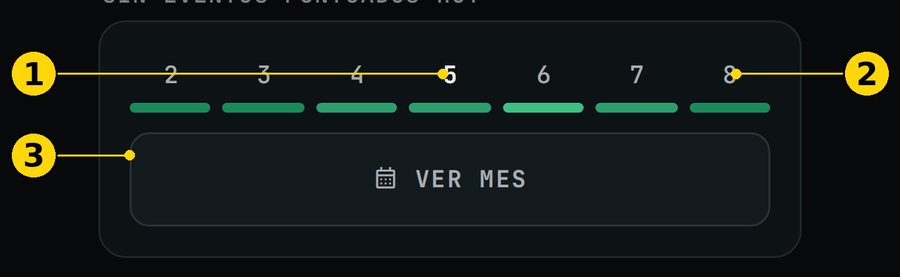
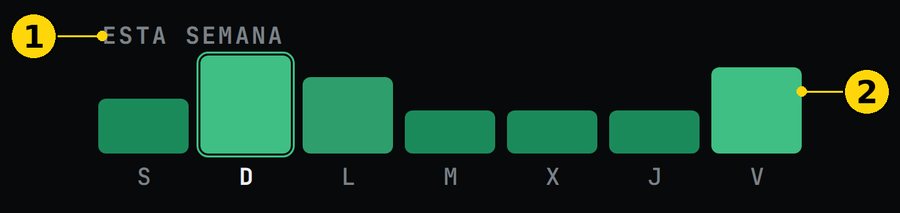
4.2.6 La tira de la semana y "VER MES"
Qué es: los 7 días con su nivel.
Cómo se lee: el día en blanco es hoy, y la barra de color es el nivel.
"VER MES": abre el calendario.
Figura 4.11 — ES: Semana · EN: Week. ① hoy · ② otro día · ③ "VER MES"
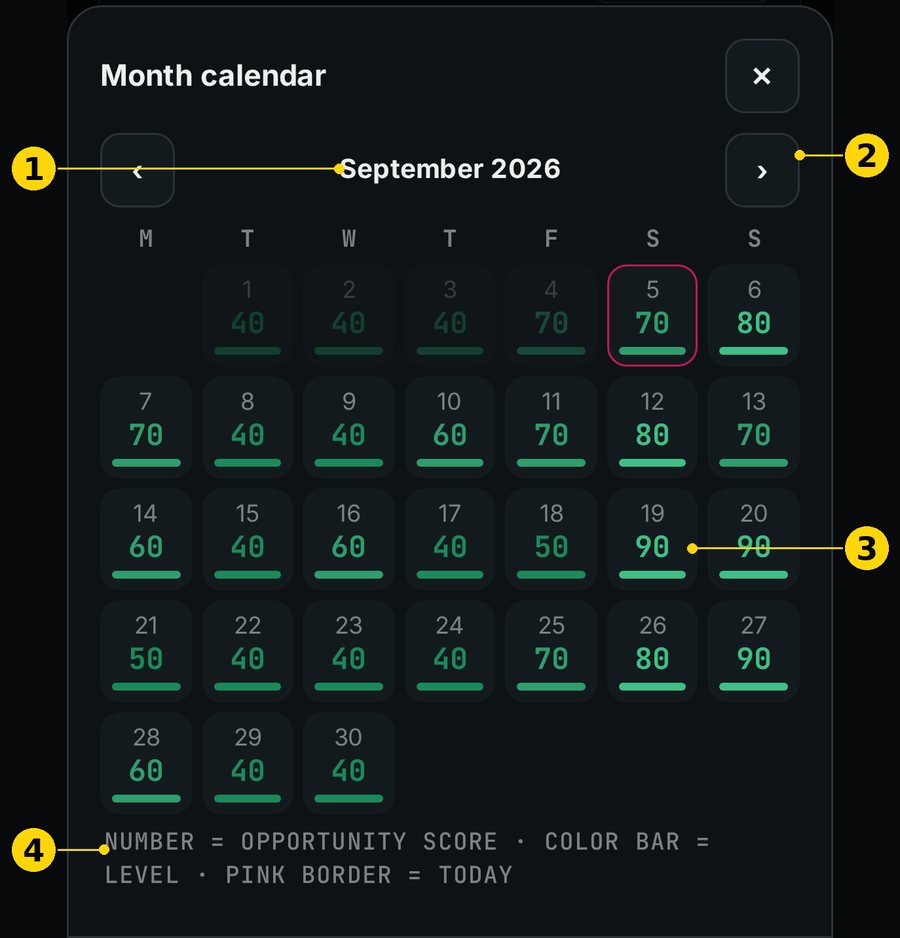
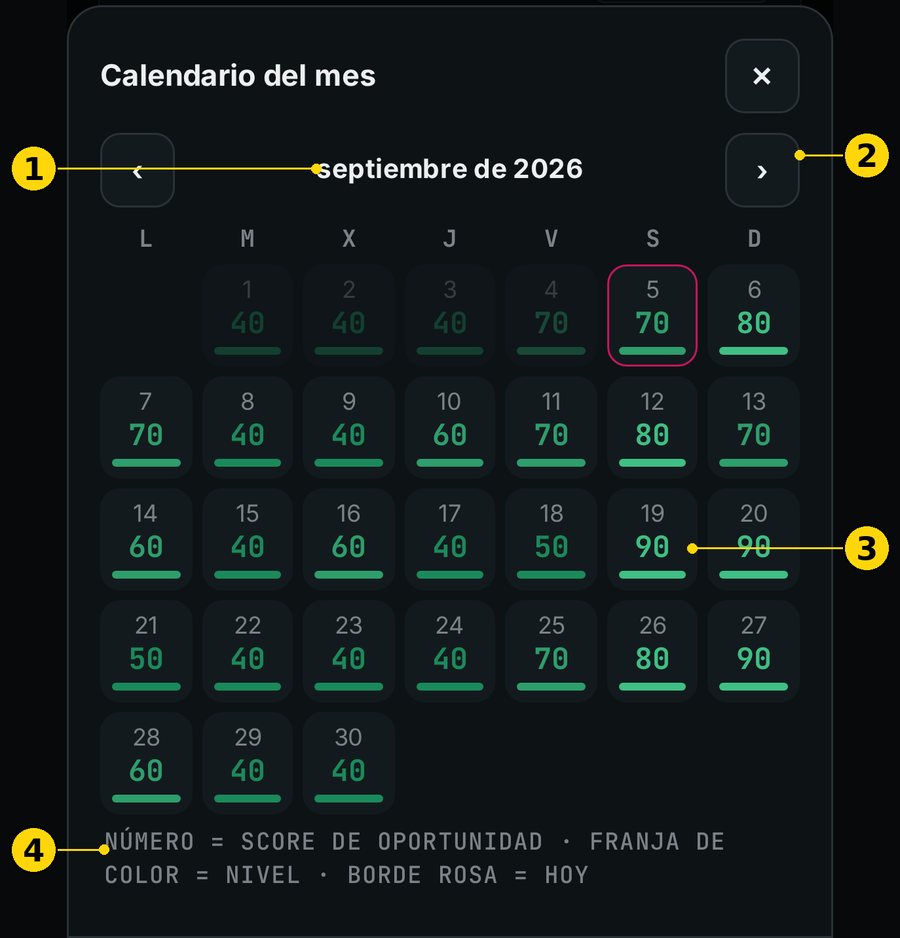
4.2.7 Calendario del mes y ficha del día
Nombre en pantalla: "Calendario del mes" / "Month calendar".
Qué es: el mes completo con el score de cada día.
Para qué te sirve: elegir días fuertes, días de diligencias, de descanso o de vacaciones.
Cómo se lee:
"Número = score de oportunidad · franja de color = nivel · borde rosa = hoy".
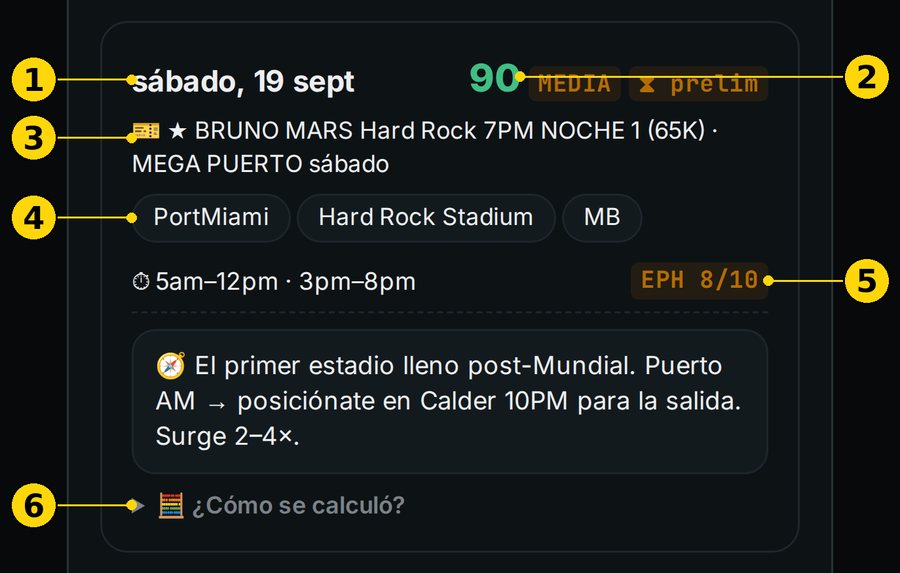
Toca un día para ver su ficha: eventos, barcos, zonas, horas fuertes y "¿Cómo se calculó?".
Límites: los días lejanos son una proyección. Se corrigen cuando llegan los datos en vivo.
Figura 4.12 — ES: Calendario · EN: Calendar. ① mes · ② mes siguiente · ③ score de un día · ④ leyendaFigura 4.13 — ES: Ficha del día · EN: Day card. ① fecha · ② score · ③ eventos y barcos · ④ zonas · ⑤ horas fuertes · ⑥ "¿Cómo se calculó?"
4.3 Mapa
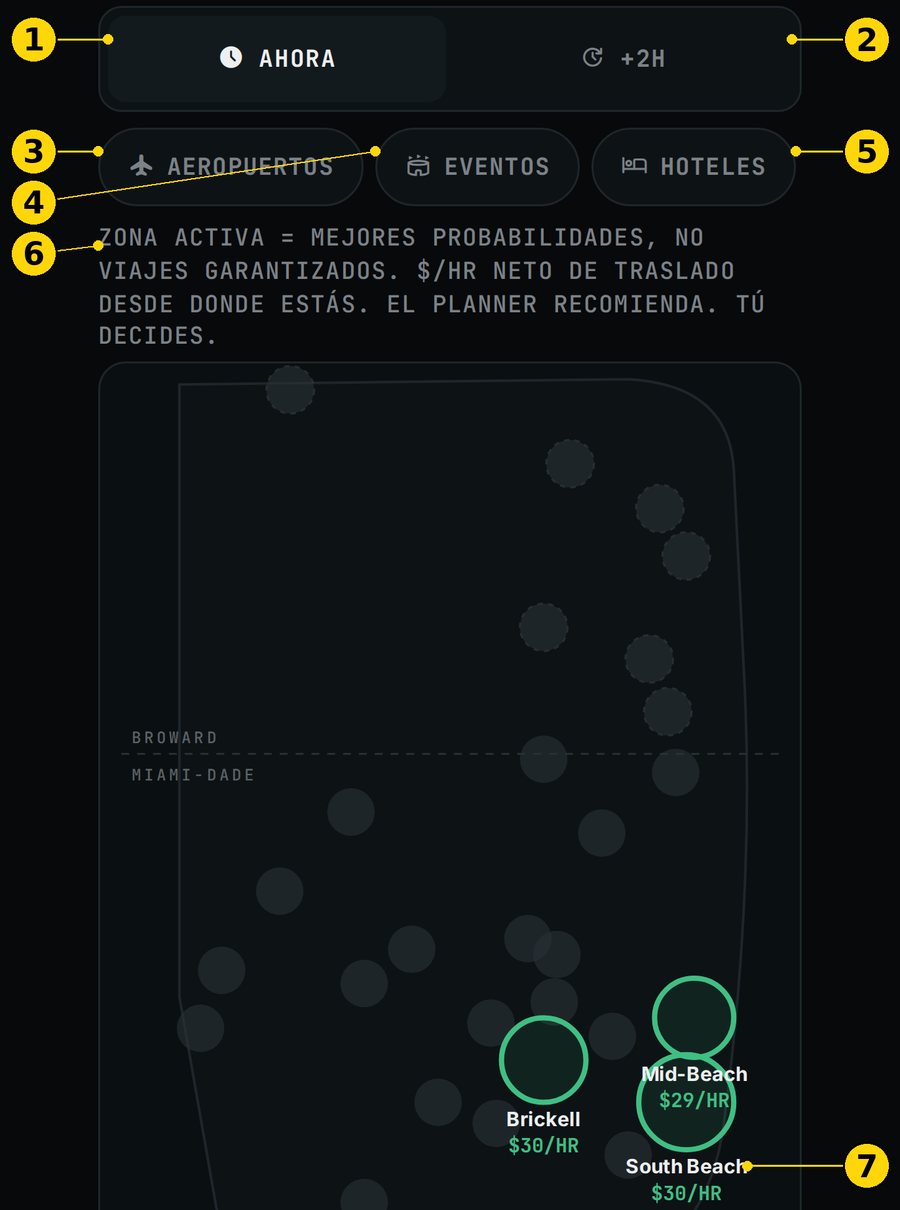
4.3.1 Ahora y +2H
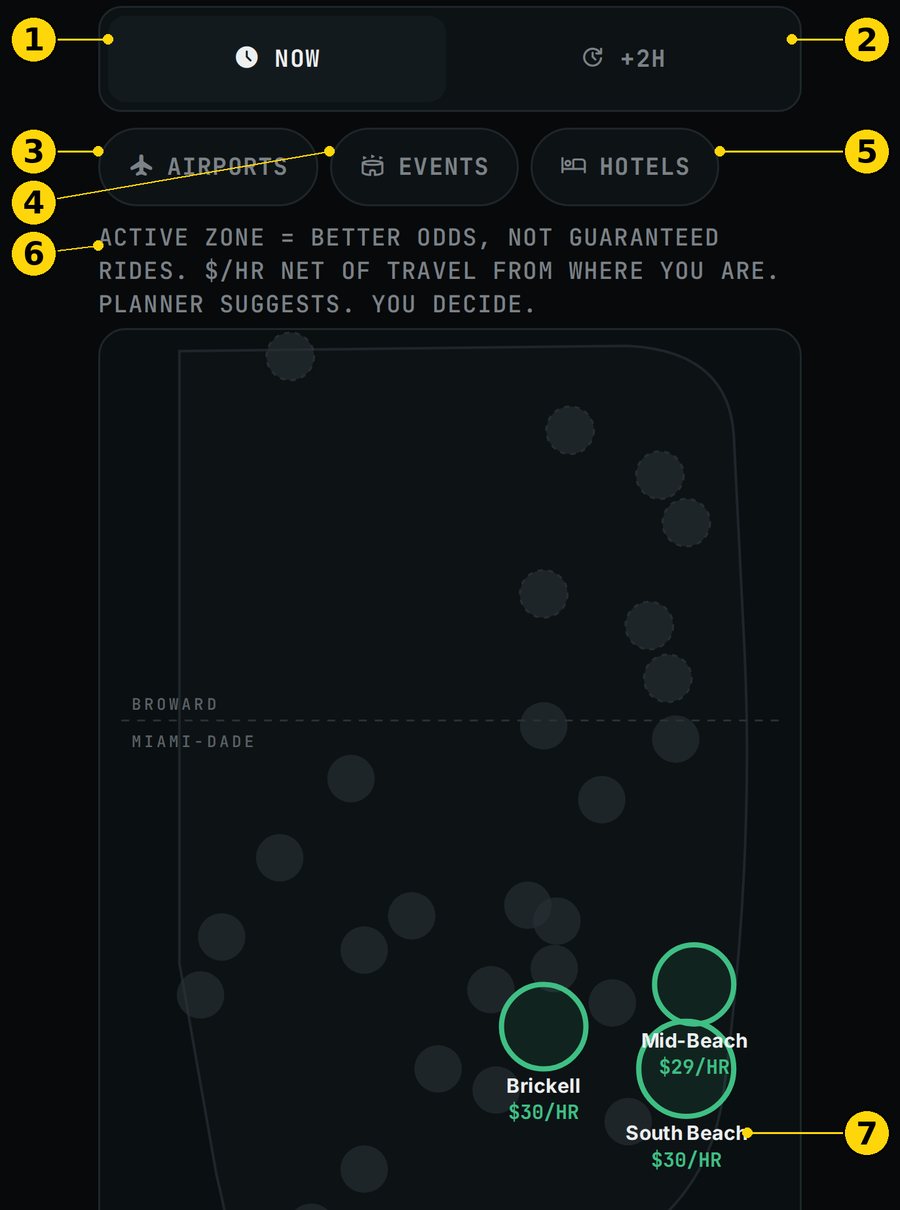
Nombre en pantalla: "AHORA" / "NOW" y "+2H".
Qué es: el mapa de las 30 zonas, ahora o dentro de 2 horas.
Para qué te sirve: ver de un vistazo dónde está la oportunidad y hacia dónde se mueve.
Cómo se lee:
Los círculos verdes son las zonas activas, con su $/h estimado.
La nota de arriba dice: "Zona activa = mejores probabilidades, no viajes garantizados."
Límites: es un mapa esquemático, no un GPS.
Figura 4.14 — ES: Mapa · EN: Map. ① AHORA · ② +2H · ③ AEROPUERTOS · ④ EVENTOS · ⑤ HOTELES · ⑥ nota · ⑦ zona activa
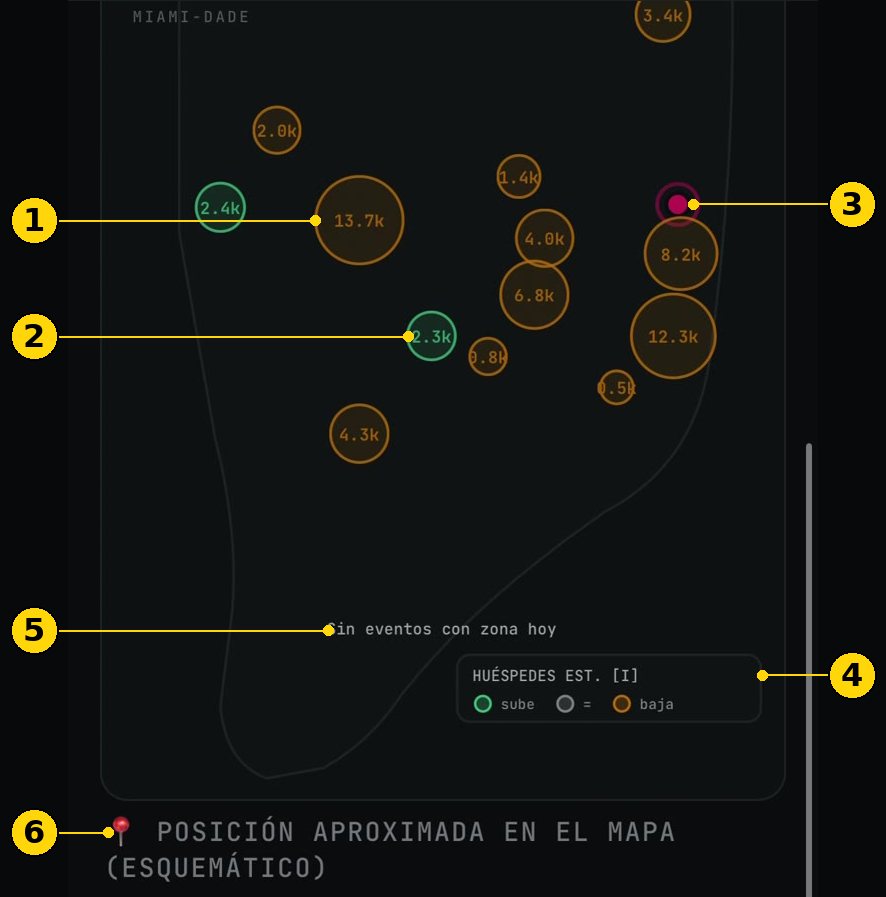
4.3.2 Capas: Aeropuertos, Eventos y Hoteles
Qué es: botones que muestran u ocultan cada capa.
Cómo se lee:
En hoteles, la burbuja es la cantidad de huéspedes estimados ("HUÉSPEDES EST. [I]").
El color de la burbuja dice si la ocupación sube, se queda igual o baja.
"📍 posición aproximada en el mapa (esquemático)" es tu punto en el mapa.
Límites: los huéspedes por zona son un estimado [I].
Figura 4.15 — ES: Capas · EN: Layers. ① burbuja grande · ② burbuja que sube · ③ tu posición · ④ leyenda · ⑤ aviso de eventos · ⑥ posición aproximada. Captura de la v11.25.1, recortada.
4.3.3 Ficha de la zona
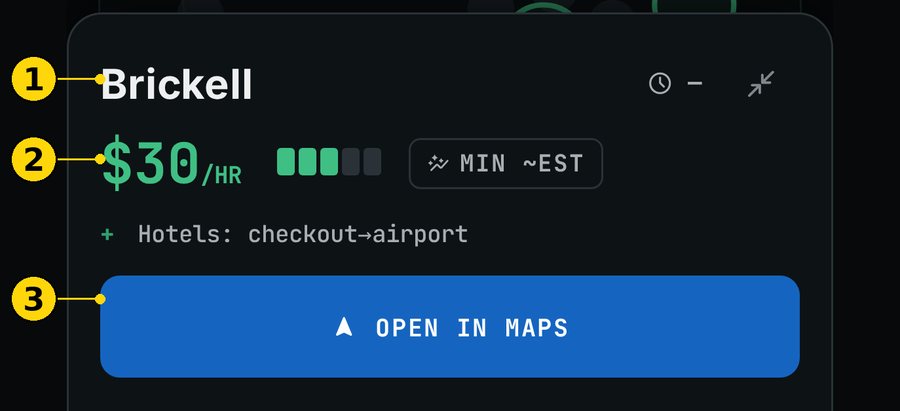
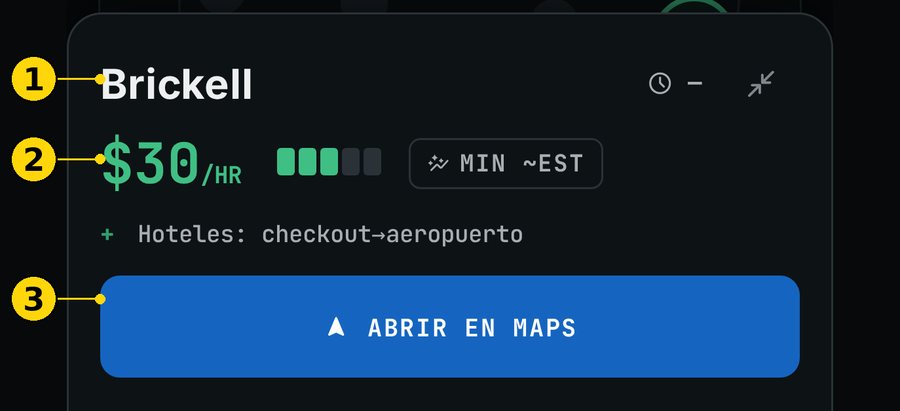
Qué es: el detalle de una zona: nombre, $/h estimado, nivel y porqué.
"ABRIR EN MAPS": te lleva a esa zona.
Figura 4.16 — ES: Ficha de zona · EN: Zone card. ① zona · ② $/h · ③ "ABRIR EN MAPS"
4.4 Horas
4.4.1 Mejor bloque que queda
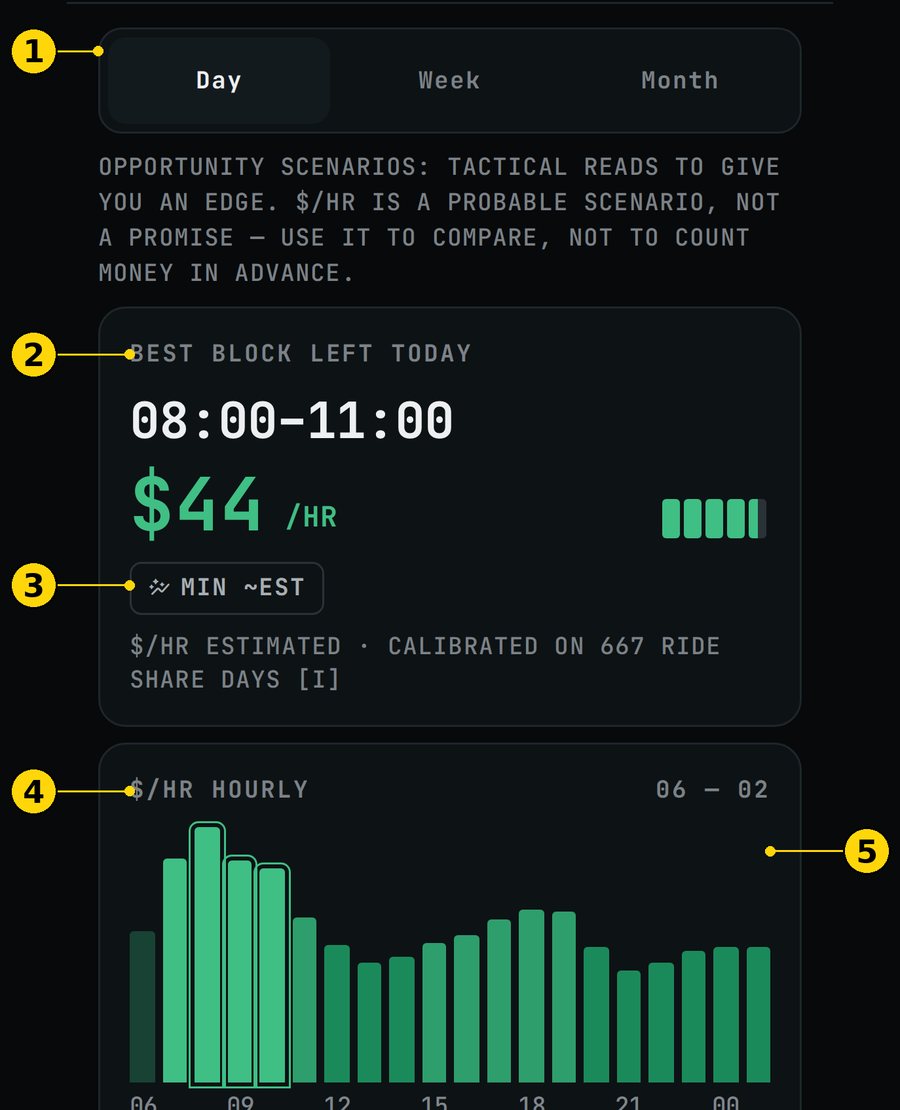
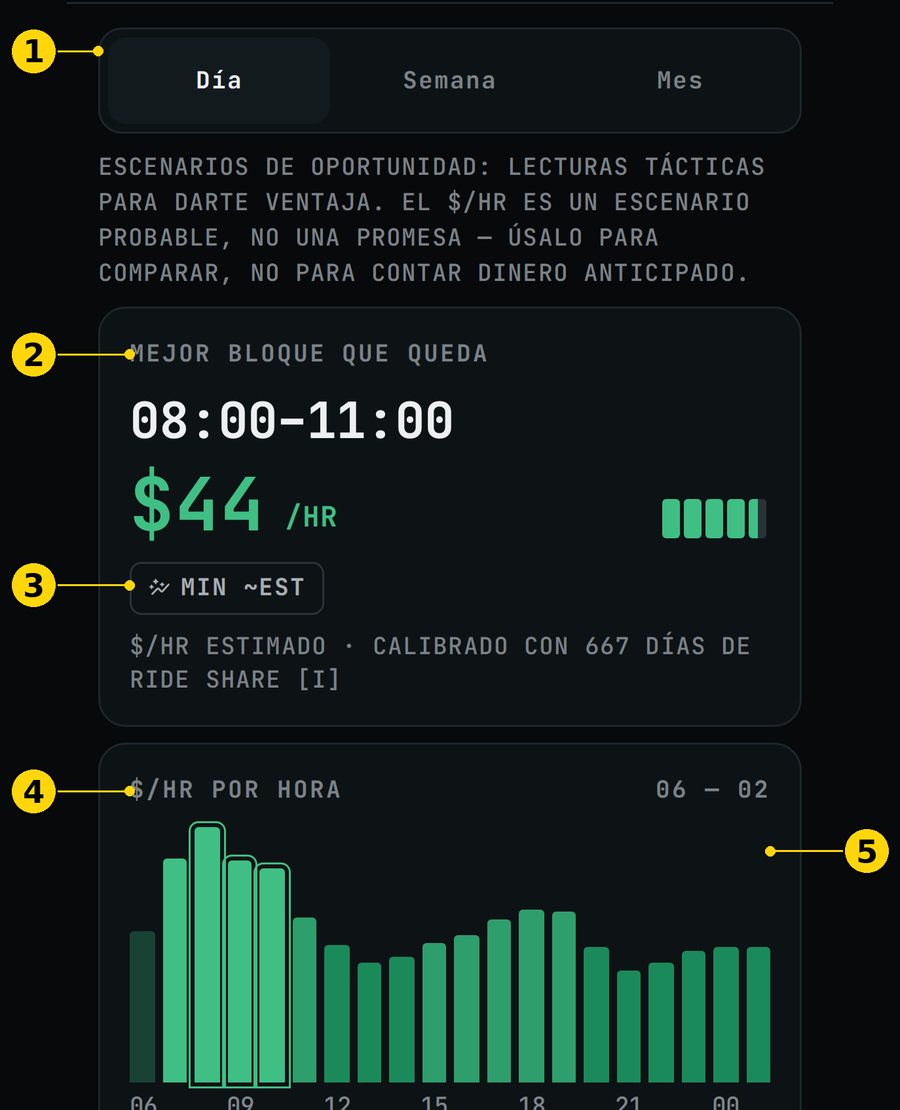
Nombre en pantalla: "MEJOR BLOQUE QUE QUEDA" / "BEST BLOCK LEFT TODAY".
Qué es: el mejor tramo de horas que todavía puedes trabajar hoy.
Para qué te sirve: si solo tienes unas horas, saber cuáles.
Cómo se lee:
El horario y el $/h estimado.
La nota "$/HR ESTIMADO · CALIBRADO CON 667 DÍAS DE RIDE SHARE [I]".
Límites: usa las mismas horas que elegiste en Máximo Potencial.
4.4.2 $/HR por hora y eventos
Nombre en pantalla: "$/HR POR HORA" / "$/HR HOURLY".
Qué es: una barra por hora, de las 06 a las 02.
Cómo se lee: la barra alta es una hora fuerte. Debajo salen los eventos del día.
Figura 4.17 — ES: Horas · Día · EN: Hours · Day. ① Día / Semana / Mes · ② mejor bloque · ③ insignia de traslado · ④ $/h por hora · ⑤ curva
4.4.3 Día, Semana y Mes
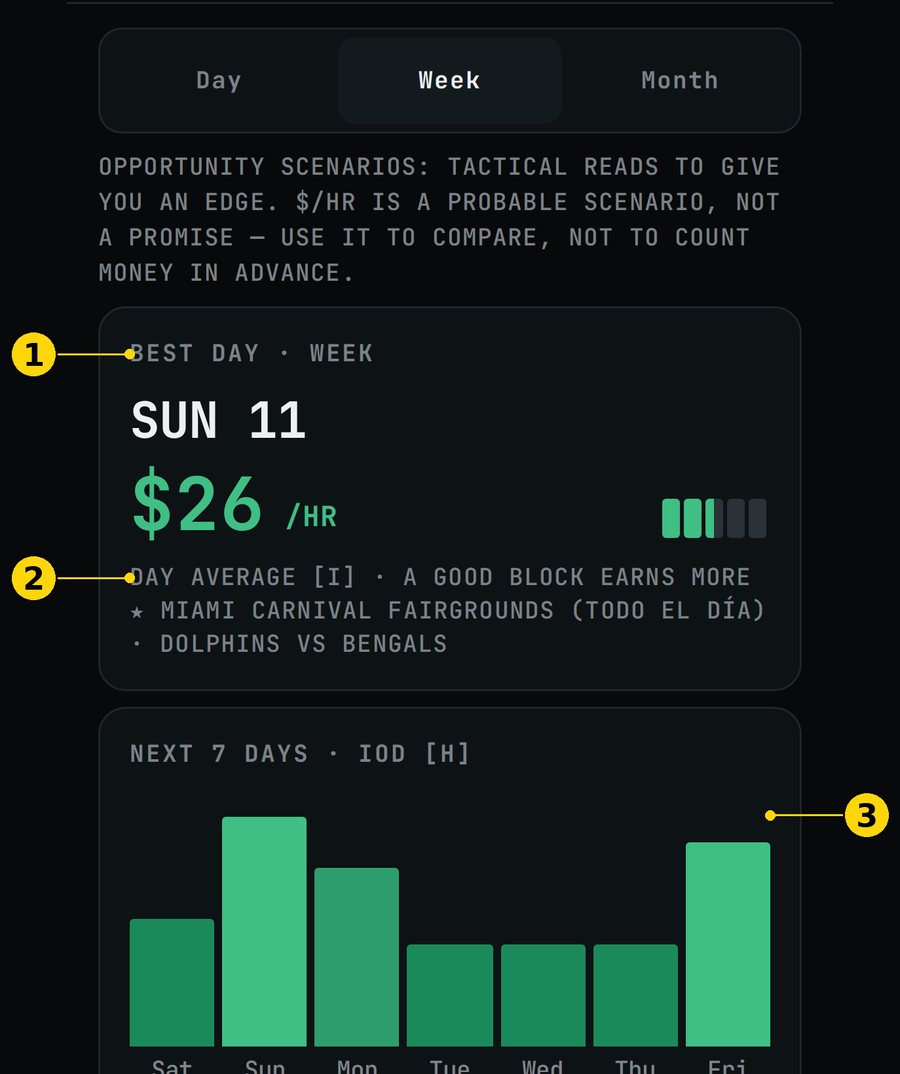
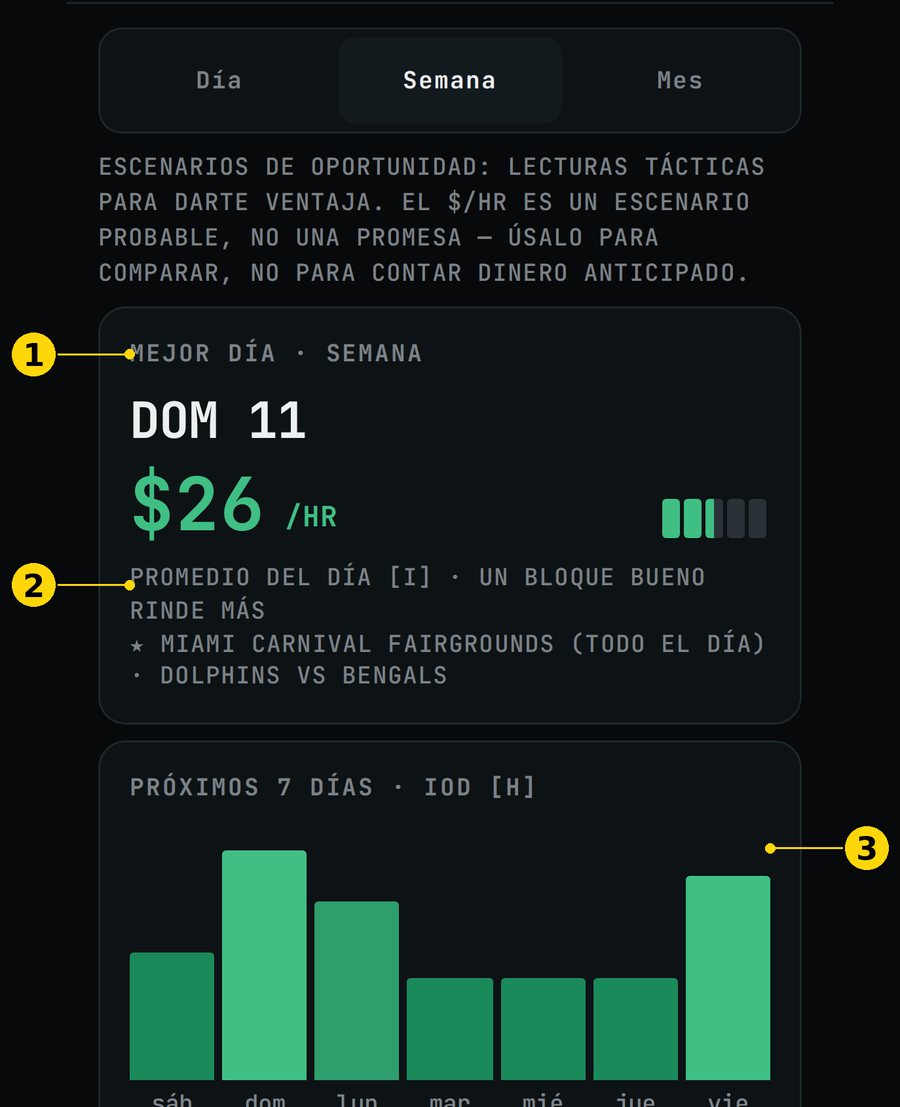
Semana: "MEJOR DÍA · SEMANA" y "PRÓXIMOS 7 DÍAS · IOD [H]".
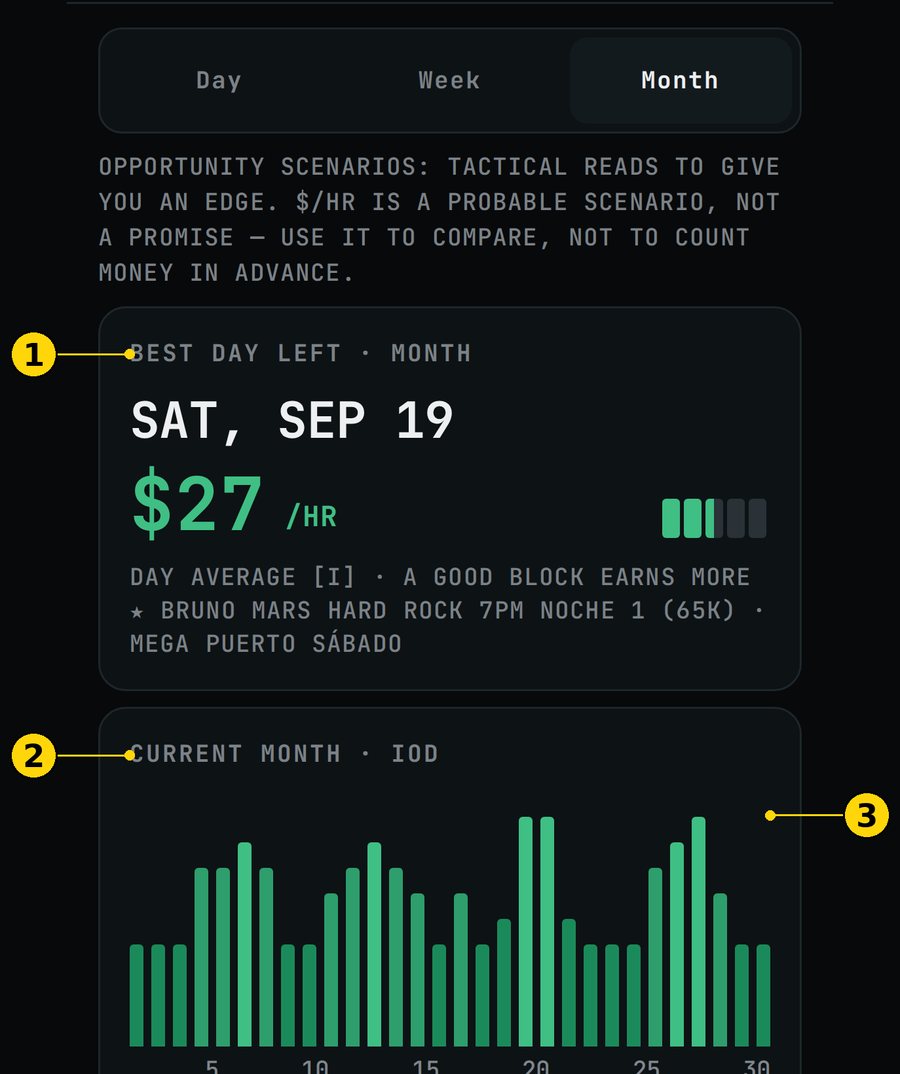
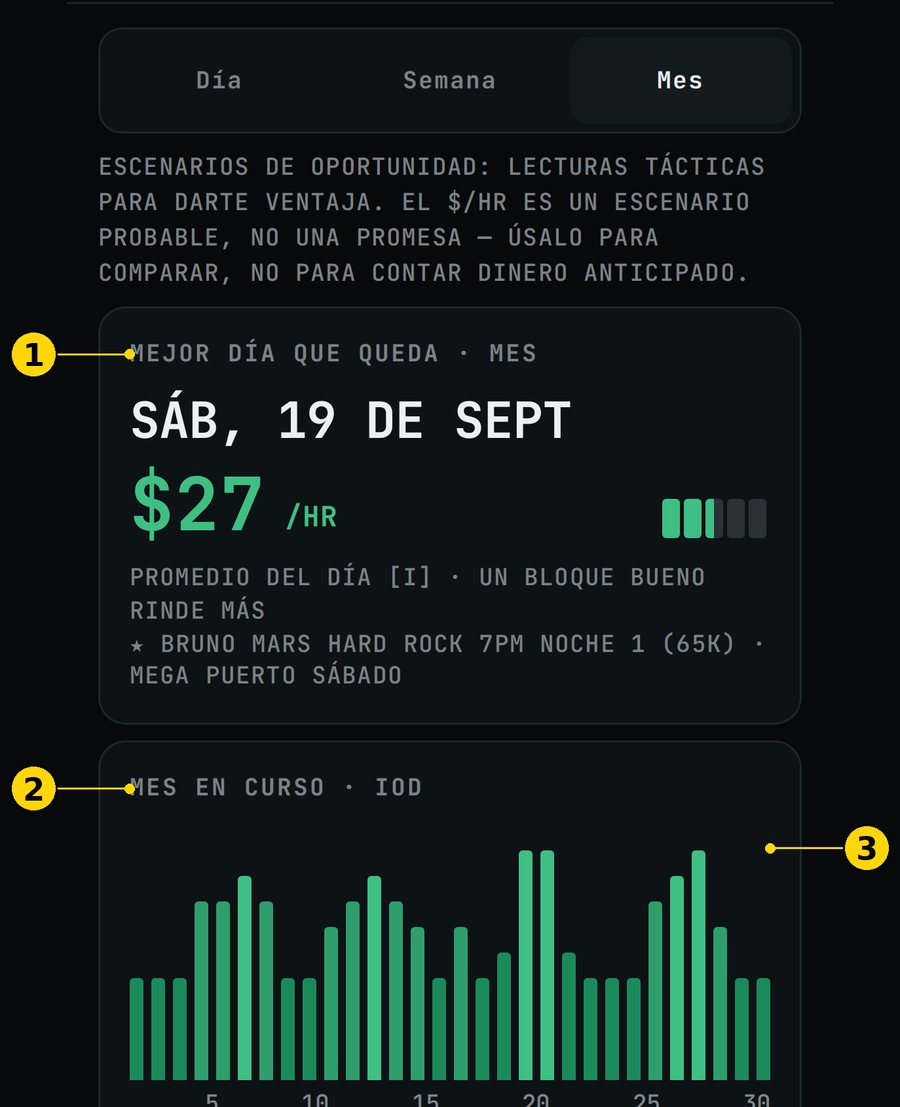
Mes: "MEJOR DÍA QUE QUEDA · MES" y "MES EN CURSO · IOD".
"PROMEDIO DEL DÍA [I] · un bloque bueno rinde más": el promedio de un día es más bajo que su mejor bloque.
Para qué te sirve: decidir qué días trabajar, cuáles descansar y qué semana apretar.
Figura 4.18 — ES: Semana · EN: Week. ① mejor día · ② promedio del día · ③ próximos 7 díasFigura 4.19 — ES: Mes · EN: Month. ① mejor día que queda · ② mes en curso · ③ barras del mes
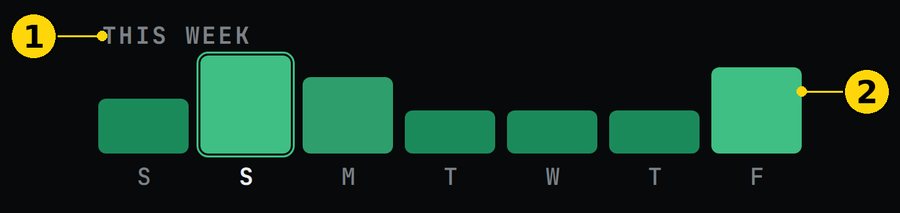
4.4.4 Esta semana
Nombre en pantalla: "ESTA SEMANA" / "THIS WEEK".
Qué es: tus 7 días en una tira.
Figura 4.20 — ES: Esta semana · EN: This week. ① título · ② días
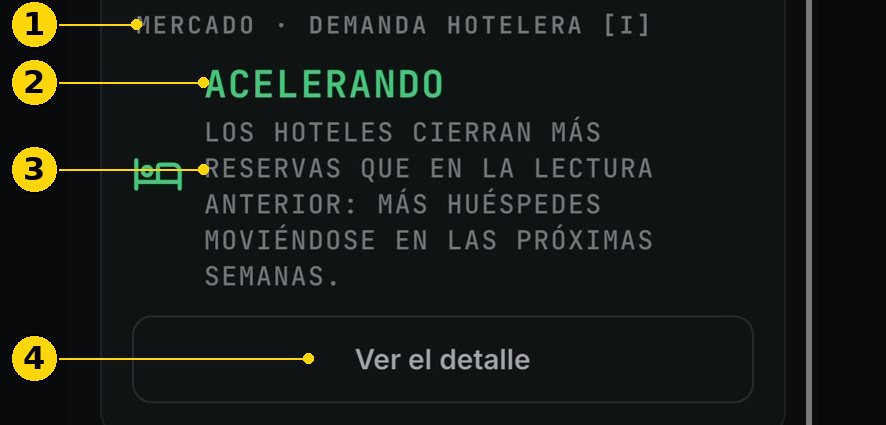
4.4.5 Mercado: demanda hotelera
Nombre en pantalla: "MERCADO · demanda hotelera" / "MARKET · hotel demand".
Qué es: cómo vienen las reservas de hotel en Miami-Dade: "ACELERANDO", "ESTABLE" o "FRENANDO".
Para qué te sirve: saber si vienen más visitantes en las próximas semanas.
"Ver el detalle": abre los meses comparados con el año anterior.
Límites: la reserva a futuro solo existe por condado, no por zona.
Figura 4.21 — ES: Mercado · EN: Market. ① título · ② tendencia · ③ explicación · ④ "Ver el detalle". Captura de la v11.25.1.
4.5 Viajeros
Arriba eliges "AEROPUERTO" o "PUERTO".
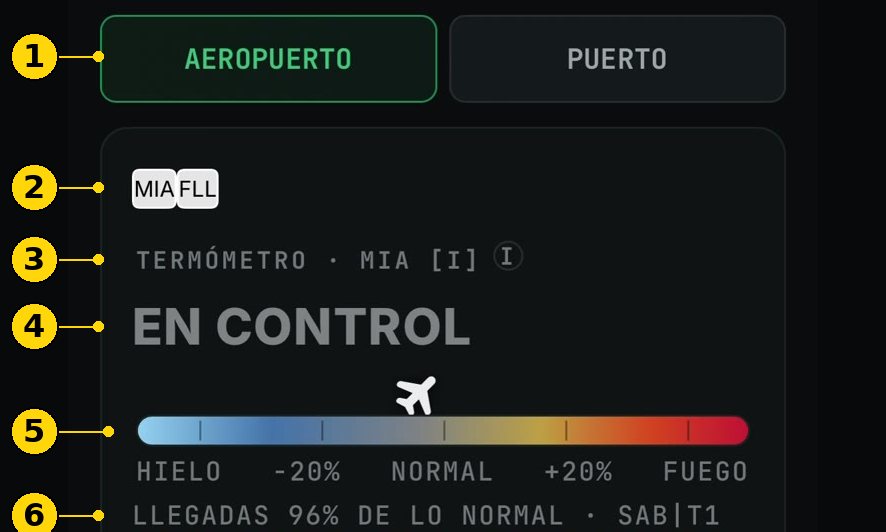
4.5.1 Termómetro del aeropuerto
Nombre en pantalla: "TERMÓMETRO · MIA [I]" / "THERMOMETER · MIA [I]".
Qué es: cómo vienen las llegadas de MIA frente a lo normal para esa hora.
Para qué te sirve: decidir si ir al aeropuerto o no.
Cómo se lee:
El nivel ("CONGELADO", "EN CONTROL", "CALIENTE" o "DESCONTROL").
El avión marca dónde está la aguja en la barra.
"llegadas …% de lo normal".
"espera típica aquí": los minutos que sueles esperar a esa hora.
Con "CONGELADO" verás: "La cola va a durar más de lo que aguanta la cuenta. Hoy el aeropuerto no."
En FLL: "FLL sin tabla base todavía — vuelos y estado sí".
Cuándo mirarlo: antes de ir al aeropuerto o de hacer cola.
Límites:
Es un estimado [I].
"CALIENTE" quiere decir que viene gente. No mide cuántos choferes hay ya en la cola. Por eso al lado va la espera típica: caliente + espera corta es la combinación buena.
Figura 4.22 — ES: Termómetro MIA · EN: MIA thermometer. ① Aeropuerto / Puerto · ② MIA / FLL · ③ título · ④ nivel · ⑤ barra · ⑥ llegadas frente a lo normal. Captura de la v11.25.1: la escala de abajo ahora dice CONGELADO · EN CONTROL · CALIENTE · DESCONTROL.
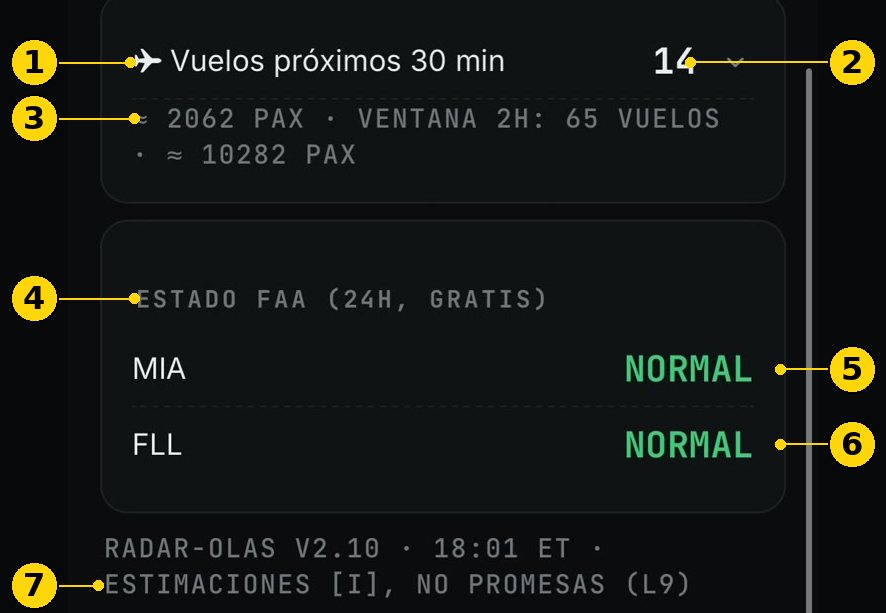
4.5.2 Vuelos de los próximos 30 minutos
Nombre en pantalla: "✈ Vuelos próximos 30 min" / "✈ Flights next 30 min".
Qué es: cuántos vuelos aterrizan pronto y cuántos pasajeros traen.
Cómo se lee:
Toca la fila para ver la lista.
Cada vuelo trae su hora de pista → hora en la acera: +12 min doméstico y +30 min internacional.
"ventana 2h" suma los vuelos de las próximas 2 horas.
Límites: los pasajeros son un estimado [I]: asientos × ocupación.
4.5.3 Estado FAA
Nombre en pantalla: "ESTADO FAA (24h, gratis)" / "FAA STATUS (24h)".
Qué es: el estado de MIA y FLL: NORMAL, DEMORA o TORMENTA.
Para qué te sirve: no esperar vuelos que no llegan.
Figura 4.23 — ES: Vuelos y FAA · EN: Flights and FAA. ① vuelos 30 min · ② cantidad · ③ pasajeros y ventana 2h · ④ estado FAA · ⑤ MIA · ⑥ FLL · ⑦ estimaciones [I]. Captura de la v11.25.1.
4.5.4 Puerto: PortMiami y Pt. Everglades
Nombre en pantalla: "PUERTO" / "PORT", con "PortMiami" y "Pt. Everglades".
Qué es: el termómetro del puerto por pasajeros del día.
Para qué te sirve: resolver la mañana en el puerto.
Cómo se lee:
El nivel (ver 3.3) y la barra con el barco como aguja.
Cuántos barcos hay y cuántos pasajeros traen.
"Recogida" con su horario y el "pico".
"EN VENTANA" si ya empezó, "Empieza a las …" si todavía no, o "Ventana de hoy terminada".
La lista de barcos con "llega" y la hora.
"Mañana": barcos y nivel de mañana.
"PRÓXIMOS 7 DÍAS · PASAJEROS": compara los días entre sí. Toca un día para ver su detalle.
"Si no hay taxis en el parking, vete." [H].
En Pt. Everglades: "suma en la zona Fort Lauderdale del motor; no entra al índice del día".
Cuándo mirarlo: la noche antes y al amanecer.
Límites:
"Ventana estimada por experiencia [H]; el puerto no publica horarios de desembarque."
Con menos de 2.500 pasajeros no hay ventana de puerto.
CAPTURA PENDIENTEViajeros → Puerto → PortMiami, una mañana con barcos (ideal sábado 7–10 AM), v11.28.0, en español
CAPTURA PENDIENTEViajeros → Puerto → Pt. Everglades, v11.28.0, en español
CAPTURA PENDIENTEPuerto → "Mañana" y "PRÓXIMOS 7 DÍAS" con un día tocado, v11.28.0, en español
4.6 Ajustes
4.6.1 Perfil
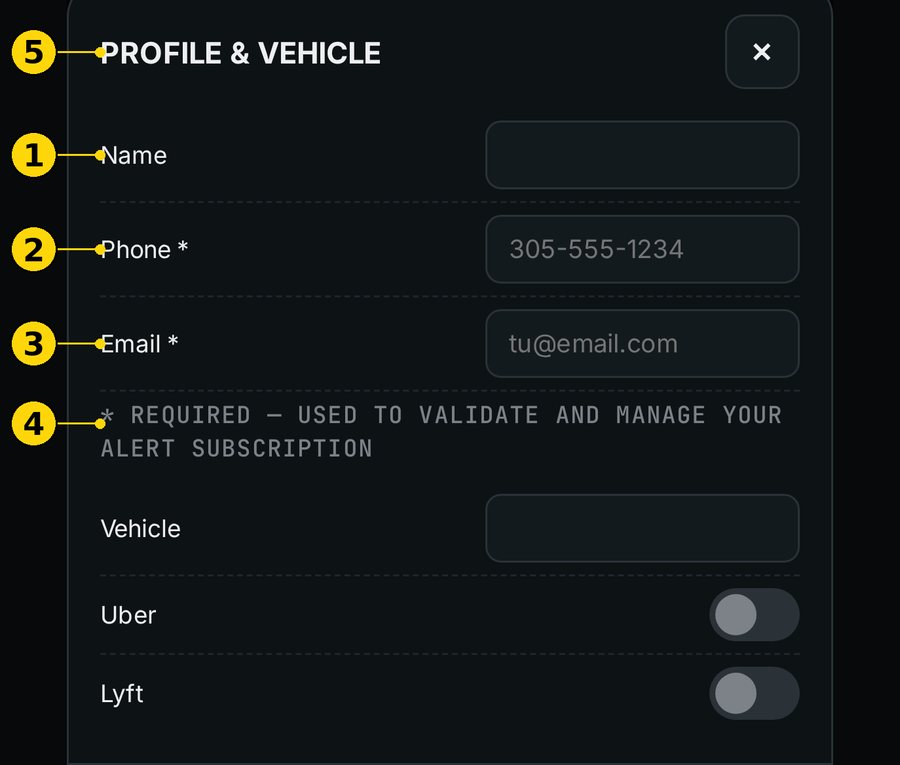
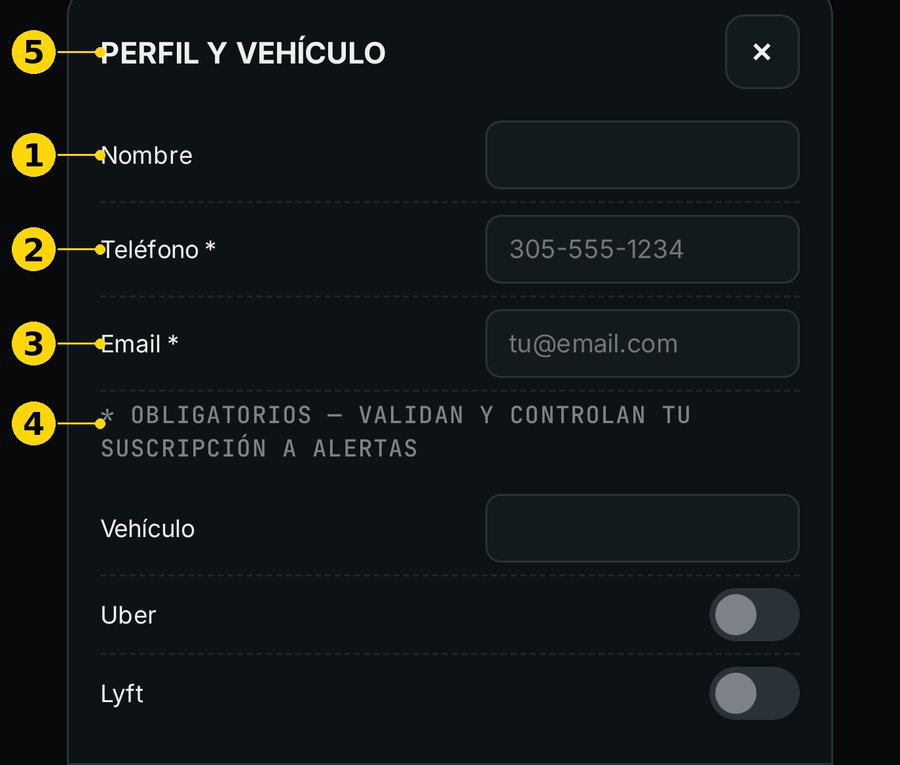
Qué es: "PERFIL Y VEHÍCULO": nombre, "Teléfono ", "Email " y vehículo.
Para qué te sirve: el teléfono y el email activan las alertas push.
Límites: "* obligatorios — validan y controlan tu suscripción a alertas".
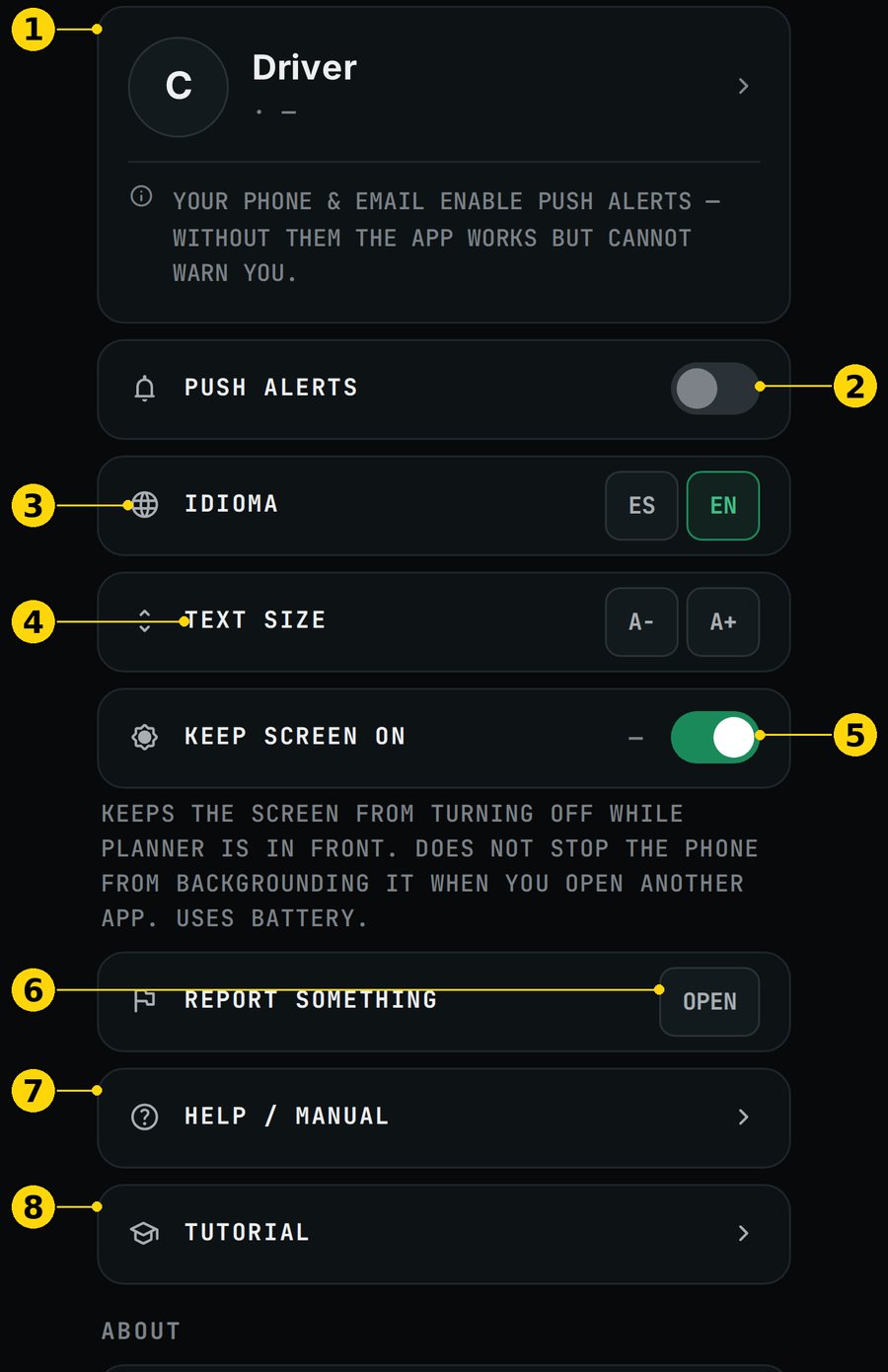
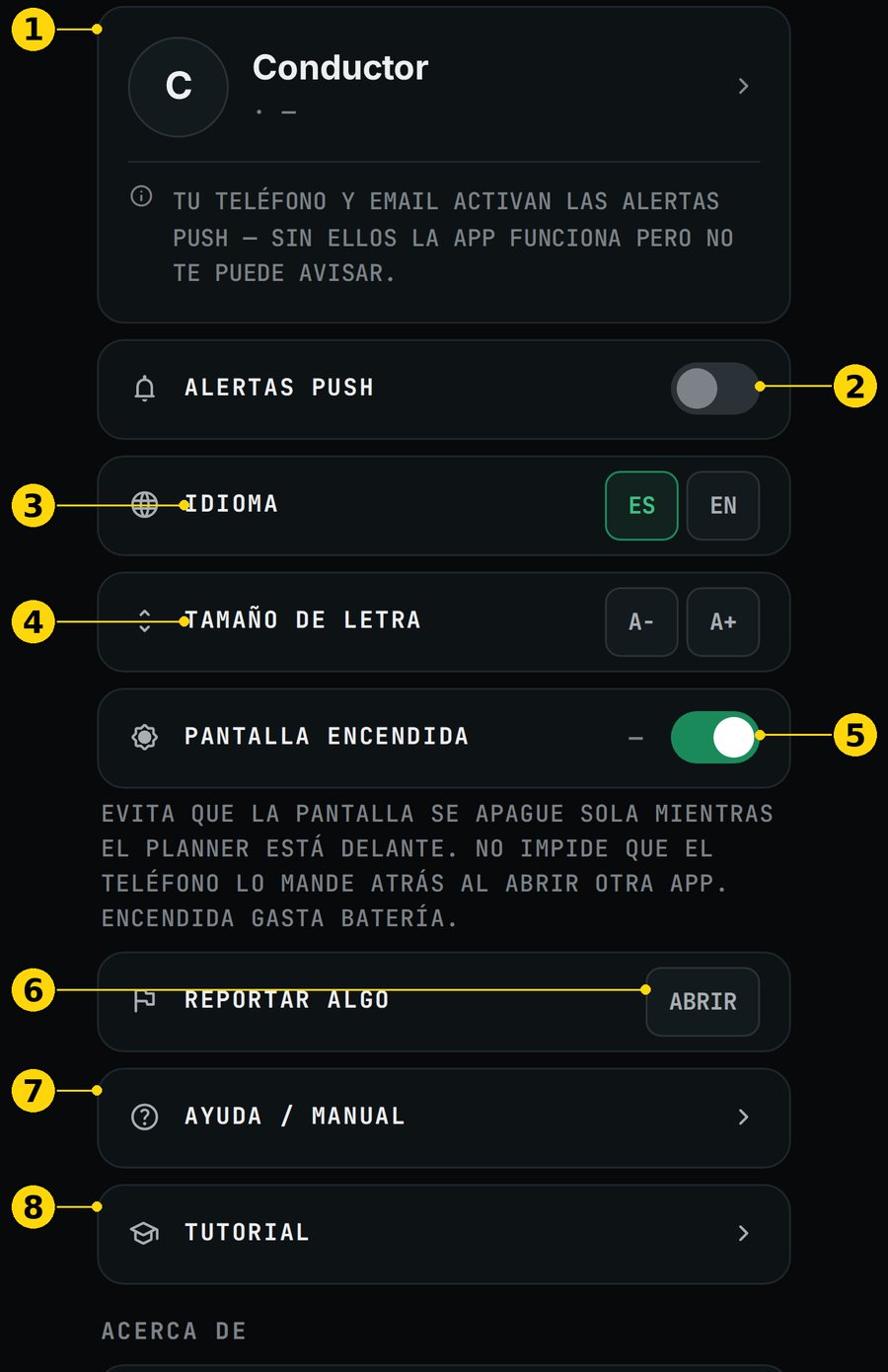
Figura 4.24 — ES: Ajustes · EN: Settings. ① perfil · ② alertas push · ③ idioma · ④ tamaño de letra · ⑤ pantalla encendida · ⑥ reportar algo · ⑦ ayuda / manual · ⑧ tutorialFigura 4.25 — ES: Perfil · EN: Profile. ① nombre · ② teléfono · ③ email · ④ nota de obligatorios · ⑤ vehículo
4.6.2 Alertas push y probar alerta
"ALERTAS PUSH": actívalas para recibir avisos de barcos, eventos, tormentas y cierres.
"PROBAR ALERTA" → "PROBAR": manda una alerta de prueba que debe llegar en segundos.
Si no llega: apaga las alertas y vuelve a activarlas.
4.6.3 Idioma, tamaño de letra y pantalla encendida
"IDIOMA": ES o EN.
"TAMAÑO DE LETRA": A− o A+.
"PANTALLA ENCENDIDA": la pantalla no se apaga sola mientras el Planner está delante. No impide que el teléfono lo mande atrás al abrir otra app. Gasta batería.
4.6.4 Reportar algo
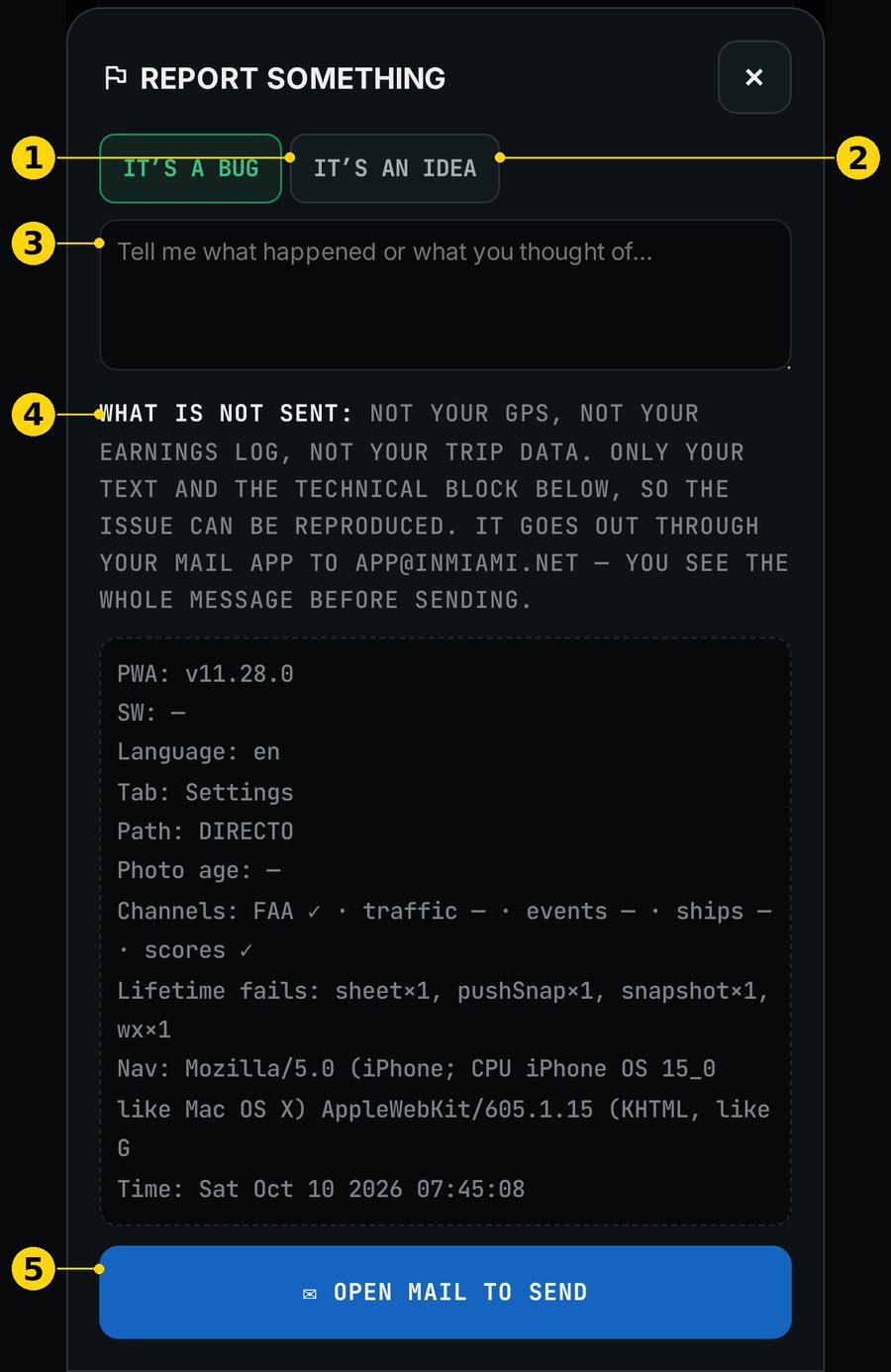
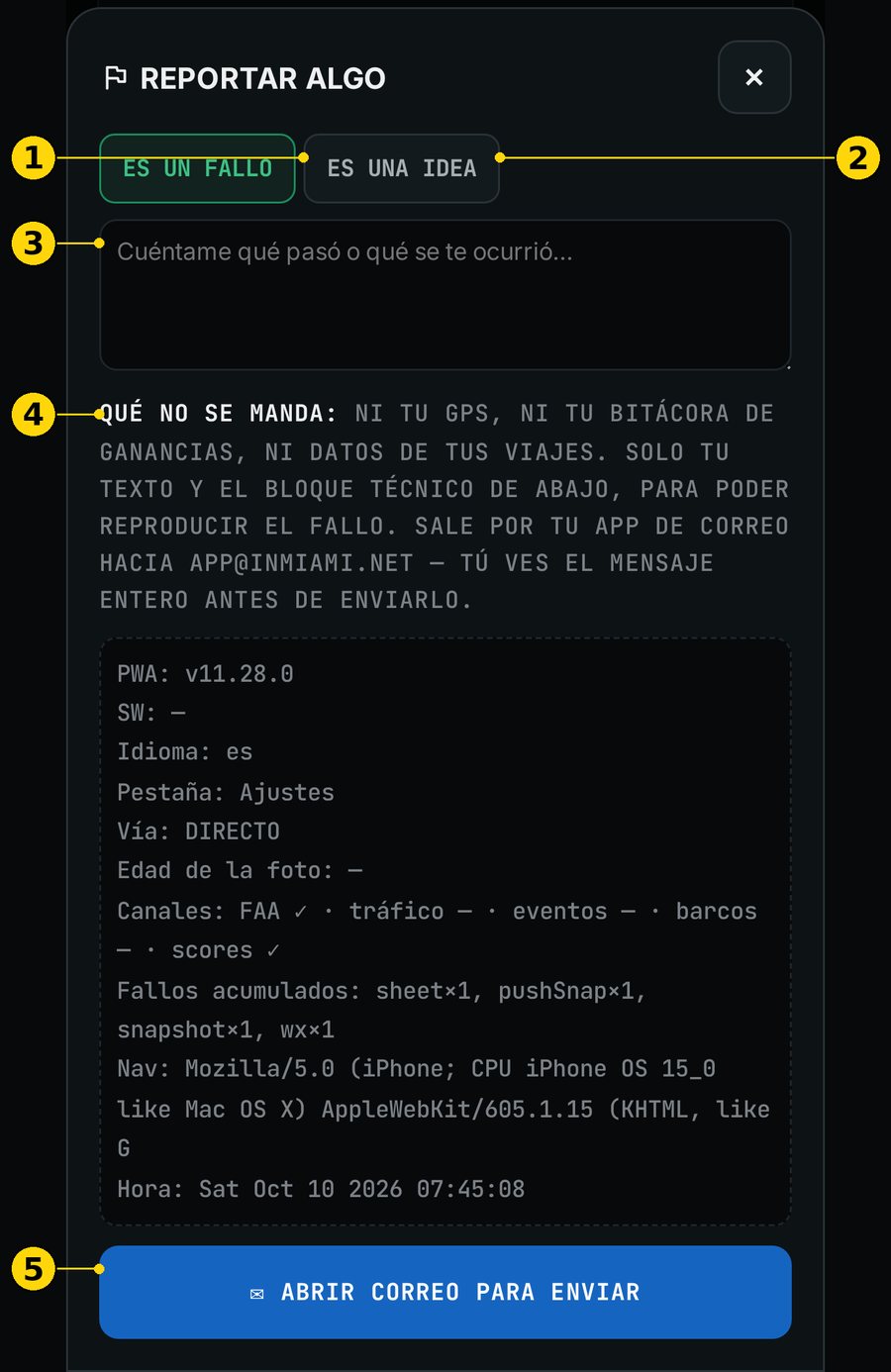
Nombre en pantalla: "REPORTAR ALGO" → "ABRIR".
Cómo se usa:
Elige "ES UN FALLO" o "ES UNA IDEA".
Escribe qué pasó.
Toca "ABRIR CORREO PARA ENVIAR".
Qué NO se manda: ni tu GPS, ni tu bitácora de ganancias, ni datos de tus viajes. Sale por tu app de correo y ves el mensaje antes de enviarlo.
Figura 4.26 — ES: Reportar algo · EN: Report something. ① es un fallo · ② es una idea · ③ tu texto · ④ qué no se manda · ⑤ abrir correo
4.6.5 Ayuda, tutorial, acerca de y términos
"AYUDA / MANUAL" y "TUTORIAL".
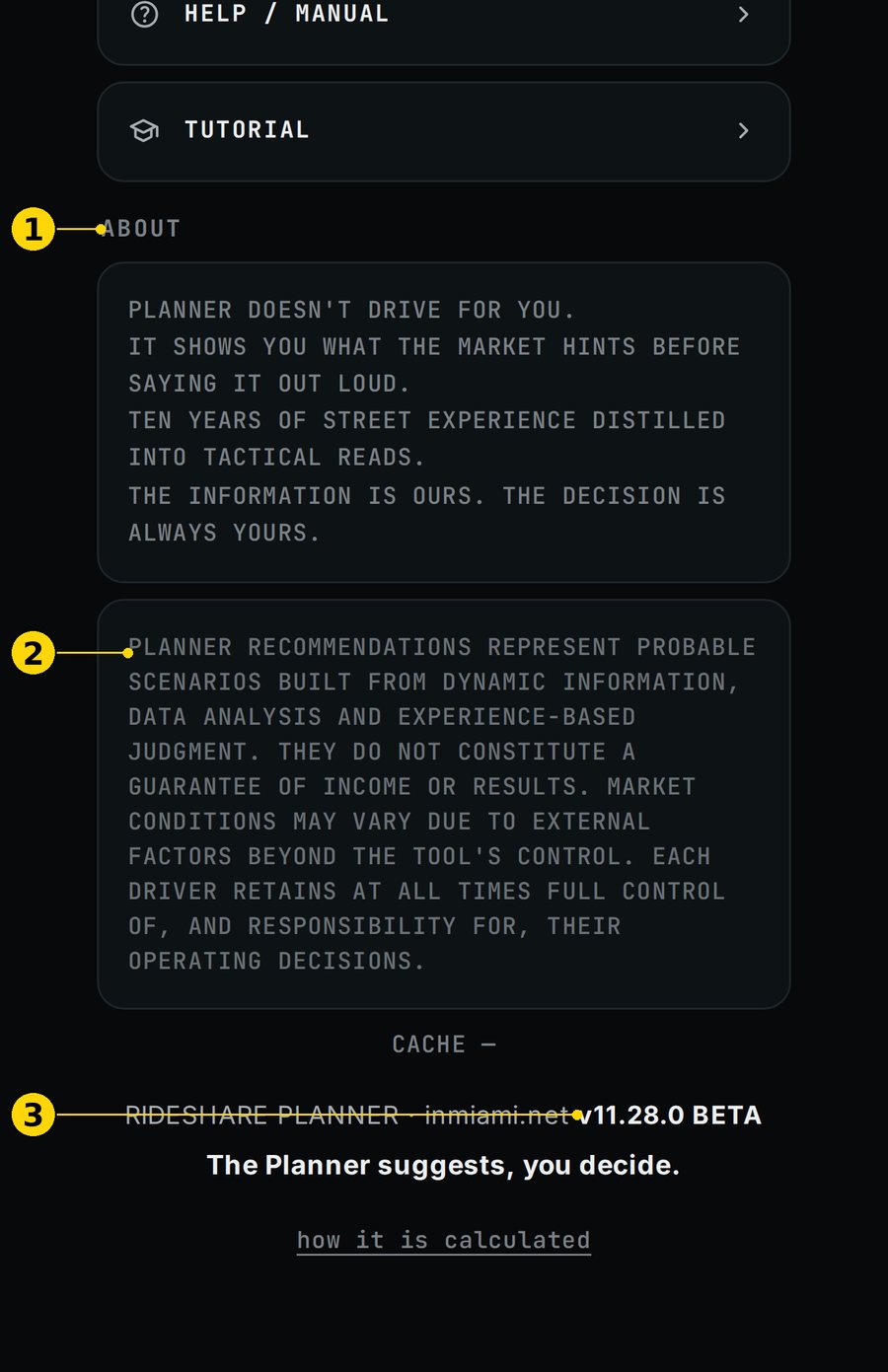
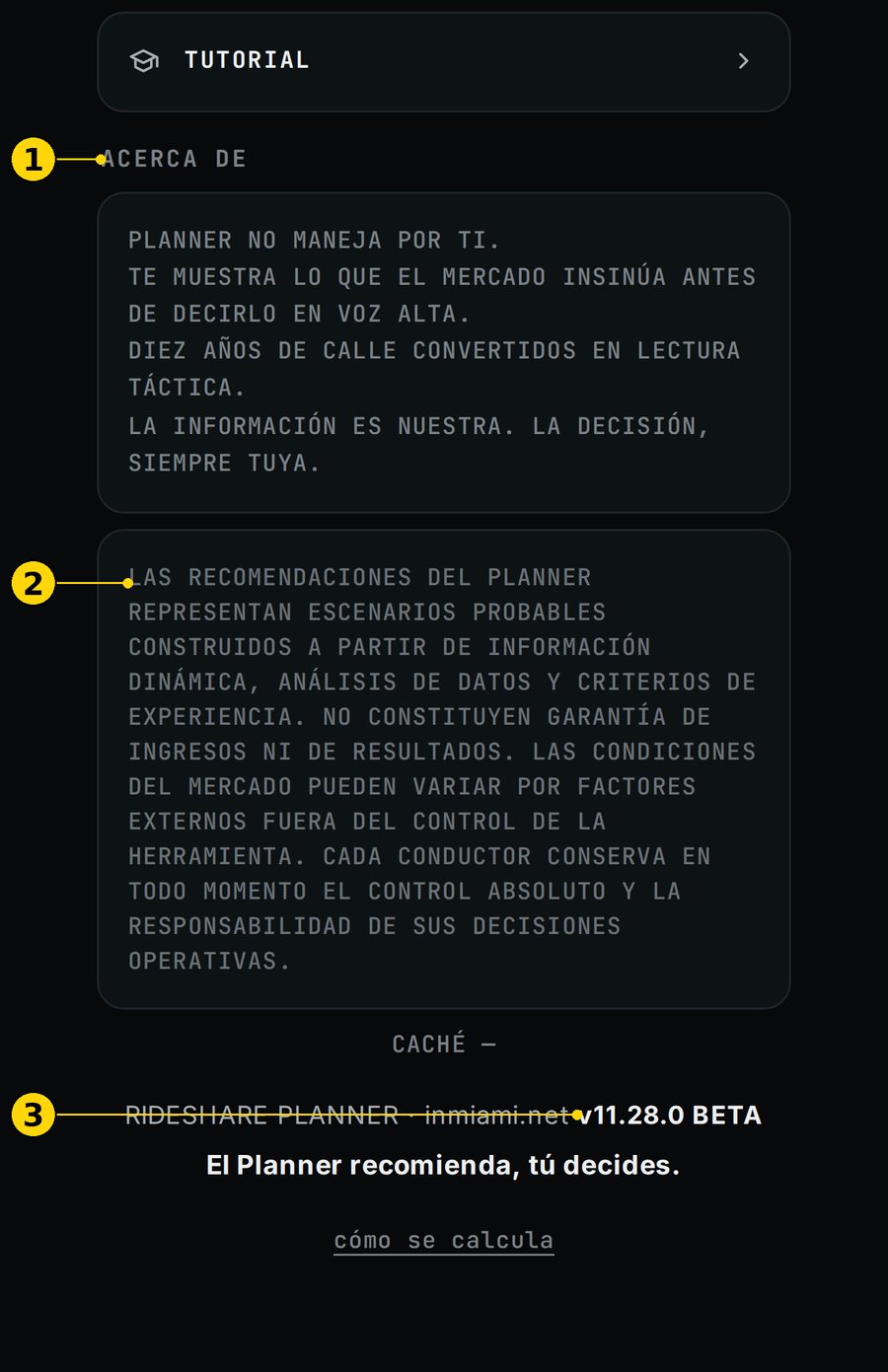
"ACERCA DE": qué es el Planner y su aviso legal.
Abajo: la versión, por ejemplo "v11.28.0 BETA".
Términos: se abren desde el aviso BETA ("Leer términos completos").
Figura 4.27 — ES: Acerca de · EN: About. ① acerca de · ② aviso legal · ③ versión
5. Tu turno con el Planner
5.1 Mañana de cruceros
La noche antes: Viajeros → Puerto → "Mañana". ¿Cuántos barcos y qué nivel?
Al amanecer: Viajeros → Puerto. Mira la "Recogida" y el "pico".
En el puerto: si no hay taxis en el parking, vete.
Después: Copiloto → "PLAN DE RUTA · 3 PARADAS" para la siguiente zona.
Decisión que apoya: a qué hora llegar al puerto y cuándo irte.
5.2 Noche de concierto o partido
En la tarde: Agenda → "EVENTOS DE HOY". Mira la hora "SAL" de cada evento.
Copiloto → "LÍNEA DE TIEMPO DEL TURNO" para ver los hitos de la noche.
Mapa → "+2H" para ver hacia dónde se mueve la oportunidad.
Antes de la salida: sigue el Mandato.
Decisión que apoya: dónde estar cuando sale la gente.
5.3 Día de aeropuerto
Viajeros → Aeropuerto → "TERMÓMETRO". ¿"CALIENTE" o "CONGELADO"?
"✈ Vuelos próximos 30 min": ¿cuántos vuelos y a qué hora llegan a la acera?
"ESTADO FAA": ¿hay demoras?
Si el termómetro dice "CONGELADO", vuelve al Copiloto y busca otra zona.
Decisión que apoya: si vale la pena hacer cola en el aeropuerto.
5.4 Día tranquilo
Horas → Semana o Mes para ver los días fuertes.
Agenda → tarjeta del día. ¿Es un "día flojo"?
Si el Copiloto dice "Ahora mismo no veo ventaja clara.", no des vueltas. Esperar también es una jugada.
Usa el calendario para elegir el día de descanso o de diligencias.
Decisión que apoya: trabajar menos horas, pero las mejores, o descansar.
6. Preguntas frecuentes y problemas
6.1 Veo datos viejos o una fuente caída
Mira el chip de frescura (ver 3.2).
"PARCIAL ⚠" quiere decir que una fuente falló.
En Viajeros puede salir "SIN DATO" o "sin datos (fuente caída)".
Una fuente caída nunca tumba la app: lo demás sigue funcionando.
Espera unos minutos y abre de nuevo la app.
6.2 No tengo conexión
El Planner abre con lo último que guardó.
Si ya entraste antes, puedes entrar sin internet hasta 24 h después de la última vez.
DAD y los datos en vivo esperan a que vuelva la señal.
6.3 Cómo actualizar a la última versión
Cuando hay una nueva versión, sale "📡 Nueva versión disponible". Toca "Actualizar". La versión está abajo, en cada pantalla.
6.4 ¿Por qué dos pantallas dan números distintos?
"Proyectado (día completo)" cuenta el día entero.
"Dinámico (lo que queda)" cuenta solo lo que falta.
La Agenda calcula "POTENCIAL" con 12 h en los mejores turnos.
Máximo Potencial usa las horas que elijas y descuenta las que ya pasaron. Por eso "TU PLAN" muestra la "diferencia".
6.5 Cómo reportar un error
Ajustes → "REPORTAR ALGO" → "ES UN FALLO" → escribe qué pasó → "ABRIR CORREO PARA ENVIAR". Llega a [email protected].
7. Glosario bilingüe
Español (app)
English (app)
Qué significa
Copiloto
Copilot
Pestaña con la orden de ahora.
MANDATO
MANDATE
La recomendación principal del momento.
QUÉDATE / MUÉVETE / ESPERA
STAY / GO / WAIT
Las tres órdenes posibles.
VENTANA
WINDOW
Cuánto le queda a la oportunidad de esa zona.
BANDA 50%
50% BAND
Rango probable del $/h.
AHORA −TRASL.
NOW −TRAVEL
$/h ajustado por traslado.
Score de oportunidad
Opportunity score
Presión de oportunidad de una zona (0–100). No es precio ni surge.
IOD
IOD
Índice de oportunidad del día (1–10).
PROYECTADO
PROJECTED
Estimado del día completo.
LO QUE QUEDA
REMAINING
Estimado de lo que falta del día.
PLAN DE RUTA · 3 PARADAS
ROUTE PLAN · 3 STOPS
Ahora, en 2 h y en 4 h.
MÁXIMO POTENCIAL
MAX POTENTIAL
Tu hoja de bloques del día.
Lo trabajo
I'll work it
Marca un bloque en tu plan.
TU PLAN
YOUR PLAN
La suma de tus bloques.
LÍNEA DE TIEMPO DEL TURNO
SHIFT TIMELINE
Hitos del día con hora.
Salida
Exit
El final de un evento: el pico de viajes.
TÁCTICA DEL DÍA
DAY TACTIC
El consejo del día en una frase.
TERMÓMETRO
THERMOMETER
Llegadas o pasajeros frente a lo normal.
CONGELADO / EN CONTROL / CALIENTE / DESCONTROL
FROZEN / IN CONTROL / HOT / OUT OF CONTROL
Niveles del termómetro.
LEVE
LIGHT
Nivel bajo del puerto (2.500–5.000 pasajeros).
MEGA PUERTO
MEGA PORT
18.000 pasajeros o más.
Recogida
Pickup
Horario de la ventana del puerto.
pico
peak
La parte más intensa de una ventana.
ACERA
CURB
Cuándo el pasajero sale a la acera.
[V] / [I] / [H]
[V] / [I] / [H]
Verificado / estimado / experiencia.
MIN GPS / MIN ~EST / MIN PATRÓN
GPS MIN / MIN ~EST / MIN PATTERN
De dónde salen los minutos de traslado.
LIVE / PARCIAL ⚠
LIVE / PARTIAL ⚠
Datos al día / alguna fuente cayó.
ESTRUCTURAL / CORREGIDO
STRUCTURAL / CORRECTED
Día proyectado / ya corregido con datos en vivo.
Techo
Ceiling
Límite de score de una zona fuera de su horario.
ISLA ATRAPADA
ISLAND TRAPPED
MacArthur y Tuttle cerrados al mismo tiempo.
DAD
DAD
El gemelo digital de Daniel.
8. Beta cerrada
8.1 Condiciones
Esto dice la app:
Es una VERSIÓN BETA: software en período de prueba, todavía en desarrollo.
Gratis por 30 días desde tu registro. Podemos extenderlo o terminarlo en cualquier momento. Sin pago, sin tarjeta, sin cobro automático.
Tal cual, sin garantías: puede tener errores, fallar o cambiar, y los datos pueden estar mal o atrasados.
Son estimaciones, no promesas: no garantizamos ingresos, viajes ni resultados.
Sin ninguna responsabilidad: en la máxima medida que permite la ley, InMiami.net LLC no responde por pérdidas, multas, accidentes, desactivaciones ni decisiones que tomes con la app.
Tu seguridad es tuya: no uses la app con el carro en movimiento.
Rigen los Términos de Uso y Licencia v1.1, Sección 3.10.
8.2 Qué te pedimos
Después de tus turnos: responder 1 pregunta. "¿El Planner te dijo hoy algo que la plataforma no te dijo?" SÍ o NO.
Los domingos: 3 preguntas cortas sobre tu semana.
Al final: 3 preguntas de cierre.
Para salir de la beta: escribe "BAJA".
8.3 Cómo dar tu opinión
En la app: Ajustes → "REPORTAR ALGO" ("ES UN FALLO" o "ES UNA IDEA").
En el grupo de WhatsApp de la beta.
Preguntándole a DAD.
Rideshare Planner · inmiami.net · v11.28.0 BETA · El Planner recomienda, tú decides.
Rideshare Planner · Driver Manual
Version v11.28.0 BETA · October 10, 2026 · inmiami.net
The Planner suggests, you decide.
Read this manual once. It takes about 15 minutes. After that, keep it handy for reference.
1. What the Planner is (and isn't)
1.1 Your opportunity copilot
The Planner watches the city while you drive. It puts together flights, events, cruise ships, traffic, weather and hotels across 30 zones in Miami-Dade and Broward. Then it tells you where to be, when, and why.
1.2 Scenarios, not guarantees
Everything you see is a likely scenario. The app says it this way: "Likely scenario, not a promise. The Planner suggests, you decide."
Every $/h is an estimate.
The Planner does not guarantee rides, earnings or results.
Use it to compare options, not to count money in advance.
1.3 Your account stays untouched
The Planner does not connect to your account on any platform. It doesn't see your trips and doesn't accept anything for you. We will never ask for your password.
2. Getting started
2.1 Sign-in
What it is: the screen to create your account or get back in.
How to use it:
Enter your name, your "Mobile phone (U.S.)" and your email.
Tap "Read terms of use and license" and read them to the end.
Check both boxes: the terms and the BETA version.
Tap "Get code by SMS". You get a 6-digit code. It expires in 10 minutes.
Next you'll see "Your license", a code like RM-XXXX-XXXX. Save it: it is never shown again. Take a screenshot.
If you switch phones: tap "I already have an account · sign in with my number", or sign in with your license.
Figure 2.1 — ES: Acceso · EN: Sign-in. ① language ES/EN · ② BETA notice · ③ name · ④ phone · ⑤ email · ⑥ read terms · ⑦ terms checkbox · ⑧ BETA checkbox · ⑨ "Get code by SMS"
2.2 The BETA notice
The first time you open the Planner, you see "BETA VERSION · TEST PERIOD". It sums up your terms:
it is test software;
"Free for 30 days" from sign-up;
these are estimates, not promises.
Tap "I understand and accept" to continue. The "Read full terms" link opens the terms.
Figure 2.2 — ES: Aviso BETA · EN: BETA notice. ① 30 days free · ② your safety · ③ full terms · ④ "I understand and accept"
2.3 Add it to your home screen
Once installed, the Planner opens like an app and keeps you signed in.
iPhone (Safari): for now, this banner is only in Spanish.
Tap Share ⬆︎ at the bottom of Safari.
Pick "Add to Home Screen".
Always open it from the icon.
Android (Chrome): tap the install button on the banner at the bottom.
From WhatsApp or Instagram: the banner asks you to open the link in Safari or Chrome, because your session can't be saved inside those apps.
Figure 2.3 — ES: Instalar en iPhone · EN: Install on iPhone. ① Share · ② Add to Home Screen (the banner is in Spanish)
2.4 Your location
The Planner asks "Use your location?". It uses it to rank zones by distance and figure out your drive time. It is not stored.
Tap "Enable location": each zone's $/h takes out the time it takes you to get there.
Tap "Not now": the Planner still works, but you'll see "GPS unavailable — enable location for travel cost", and drive times are estimated.
Figure 2.4 — ES: Ubicación · EN: Location. ① "Enable location" · ② "Not now"
2.5 Alerts (notifications)
Alerts warn you about ships, events, storms and closures, even when the app is closed.
To turn them on, first fill in your phone and email under Settings → Profile.
On iPhone, first add the Planner to your home screen.
If you skip alerts, the Planner still works. It just can't ping you.
2.6 Language and text size
In Settings you pick the language (ES / EN) and "TEXT SIZE" (A− / A+). The app remembers your choice.
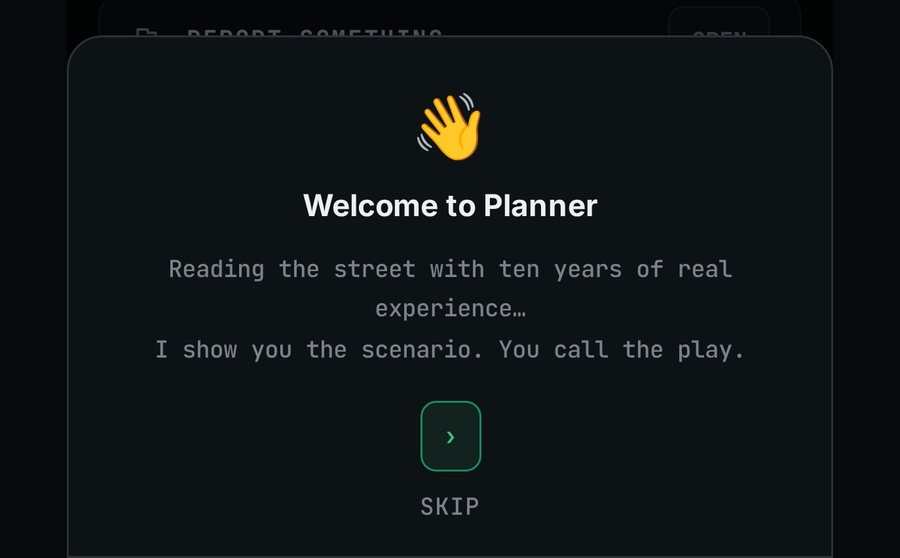
2.7 The tutorial
The first time, you get a 3-step tutorial. You can see it again under Settings → "TUTORIAL".
Figure 2.5 — ES: Tutorial · EN: Tutorial
3. How to read the Planner
This is the most important section. Here you learn to read every number.
3.1 Evidence labels
Every piece of data tells you where it comes from. The app sums it up like this: "[V] verified live/your data · [I] model estimate · [H] experience rule".
Label
What it means
Real example in the app
[V] verified
Live data or from an official source.
"~12 min wait between trips [V]" on the Copilot
[I] estimate
The model calculates it. It's a guide, not a fact.
"THIS ZONE · NOW · ESTIMATE [I]" and "50% BAND $23–$38/HR [I]"
[H] experience
A rule from 10+ years on the street.
"Window estimated from experience [H]" on the Port screen
Drive-time badges:
"GPS MIN": minutes measured from where you are.
"MIN ~EST": estimated minutes, because there is no GPS.
"MIN PATTERN": minutes based on the usual pattern for that hour.
Figure 3.1 — ES: Etiquetas · EN: Labels. ① estimate [I] · ② band [I] · ③ verified data [V] · ④ drive-time badge
3.2 Freshness: how new is the data
The chip at the top right tells you if the data is current.
What you see
What it means
What to do
"LIVE"
Everything updated in the last 30 min.
Nothing.
"PARTIAL ⚠" + a number
One or more sources failed in the last 30 min.
Be careful with anything that depends on that source.
"↻ N min ago"
30 min or more without an update.
Check your signal or reopen the app.
"· photo Nh"
The calendar and ship base is more than 2 h old.
Live data is still up to the minute.
"◷ data from Nh"
The base is more than 4.5 h old.
Treat the numbers as a rough guide.
Figure 3.2 — ES: Frescura · EN: Freshness. ① weather and rain · ② the "LIVE · foto 2h" chip (v11.25.1 screenshot, in Spanish). [SCREENSHOT PENDING: EN]
3.3 Levels and colors
Zone score (0–100). It measures how much opportunity a zone has. It does not measure price or surge.
Level
Score
VERY STRONG
80–100
STRONG
60–79
NORMAL
35–59
SLOW
0–34 (shown in gray, not red)
Airport thermometer (MIA). It compares arrivals with what's normal for that hour. It runs from cold to hot:
"FROZEN": fewer people than usual are landing. The queue will be long.
"IN CONTROL": arrivals are close to normal.
"HOT": more people than usual are landing.
"OUT OF CONTROL": many more people than usual are landing. [TO CONFIRM: exact threshold]
Other states: "WATCH", "STORM", "REOPENING", "NO DATA", "NO BASELINE (12–16)" and "OFF HOURS".
Port thermometer. It uses the day's passenger scale [H]:
Level on screen
Passengers
FROZEN
under 2,500: no port window
LIGHT
2,500–5,000
IN CONTROL
5,000–10,000
HOT
10,000–18,000
OUT OF CONTROL + "MEGA PORT [I]" badge
18,000 or more
3.4 The day index (IOD)
The IOD runs from 1 to 10. It tells you how the whole day looks, based on events, ships, holidays and season.
IOD
How DAD reads it
9–10
"big day"
7–8
"good day"
5–6
"average day"
1–4
"slow day"
Figure 3.4 — ES: Tarjeta del día · EN: Day card. ① date · ② $ "PROJECTED" · ③ level · ④ IOD and $/h · ⑤ 12 h "POTENTIAL" · ⑥ how the day is built · ⑦ window · ⑧ "CURVE [I]"
3.5 Estimated $/h
It is $/h for productive hours: hours with a rider in the car.
It does not include time online without a trip. It doesn't include gas or car costs either.
It is calibrated on 667 days and 5,620 real trips [V], but today's number is an estimate [I].
"NOW −TRAVEL" = adjusted for drive time: it takes out the time to get to the zone from where you are. Nothing else is taken out.
"50% BAND": half the time, the result lands between those two numbers.
Figure 3.5 — ES: $/h ajustado por traslado · EN: $/h adjusted for drive time. See Figure 4.2.
4. The 6 tabs
The bottom bar shows, in this order: Copilot · Agenda · Map · Hours · Travelers · Settings.
4.1 Copilot
4.1.1 The Mandate (the call right now)
On screen: "MANDATO" / "MANDATE".
What it is: the call for right now: "STAY", "GO" or "WAIT … then move".
Why it helps: decide at a glance whether it's worth moving.
How to read it:
The zone (for example, South Beach) and its estimated $/h.
"THIS ZONE · NOW · ESTIMATE [I]": the $/h is an estimate for that zone, right now.
"WINDOW": how many hours that opportunity has left.
"50% BAND": the likely $/h range.
The line below: the reason, for example "Hotels: checkout→airport", plus the wait between trips [V].
"how it is calculated": opens the explanation.
When to check it: every time you stop or finish a ride.
Limits:
It's a scenario [I], not a promise.
If no zone stands out, you'll see "Right now I don't see a clear edge." along with the best zone of the moment. Waiting is also a play.
Figure 4.1 — ES: Mandato · EN: Mandate. ① call · ② zone · ③ $/h · ④ estimate [I] · ⑤ window · ⑥ 50% band · ⑦ drive-time badge · ⑧ reason and wait [V] · ⑨ "how it is calculated"
4.1.2 The zone table
On screen: "ZONA · MIN · $/HR AHORA −TRASL." / "ZONE · MIN · $/HR NOW −TRAVEL".
What it is: the zones in order, with their $/h adjusted for drive time.
Why it helps: compare your zone with the others.
How to read it:
"MIN": minutes to get there.
The bars: the zone's level.
The $: an estimate, already adjusted for drive time.
Tap a row: it opens on the Map.
When to check it: when the Mandate says "GO" and you want to see other options.
Limits: without GPS, drive times are estimated ("MIN ~EST").
Figure 4.2 — ES: Tabla de zonas · EN: Zone table. ① "MAX POTENTIAL" · ② open the Mandate zone in Maps · ③ $/h adjusted for drive time · ④ zone · ⑤ drive-time badge · ⑥ milestone strip · ⑦ DAD
4.1.3 The shift timeline
On screen: "LÍNEA DE TIEMPO DEL TURNO" / "SHIFT TIMELINE".
What it is: the day's milestones with their times: ships, event exits and "Position yourself".
Why it helps: know what's coming and when to move.
How to read it:
Tap the strip at the bottom to open it.
Each line has a time and a milestone.
If there's nothing, it says "NO MILESTONES".
When to check it: at the start of your shift and every few hours.
Limits: event exit times are estimates.
Figure 4.3 — ES: Línea de tiempo · EN: Shift timeline. ① title · ②–④ milestones with times · ⑤ day tactic
4.1.4 The 3-stop route plan
On screen: "PLAN DE RUTA · 3 PARADAS" / "ROUTE PLAN · 3 STOPS".
What it is: three stops: "NOW", "THEN (+2h)" and "LATER (+4h)".
Why it helps: have your whole shift mapped out, not just the next ride.
How to read it:
Each stop shows the zone, the time, the window (⏳) and the estimated $/h.
"why": the reason for that stop.
"Go to the NOW stop in Maps": starts navigation.
When to check it: at the start, and whenever the call changes.
Limits: the +2h and +4h stops are projections. Live traffic and events can change them.
Figure 4.4 — ES: Plan de ruta · EN: Route plan. ① title · ② NOW · ③ THEN (+2h) · ④ LATER (+4h) · ⑤ why · ⑥ $/h · ⑦ go in Maps
4.1.5 Max Potential
On screen: "MÁXIMO POTENCIAL" / "MAX POTENTIAL".
What it is: your work sheet for the day, with the best blocks of hours.
Why it helps: decide how many hours to drive, and which ones.
How to read it (top part):
"I want to work": 4 h, 8 h, 12 h or 16 h.
"POTENTIAL BY HOUR": the day's curve. It shows the "best hour".
Without GPS you'll see: "No GPS: your drive to the first zone is not discounted."
How to read it (blocks):
Each block shows its hours, total and estimated $/h with a range [I].
It also shows the zone and the "Why".
"IN PROGRESS" marks the block that already started, and "OPTIONAL" one you can skip.
"Go in Maps" takes you to that zone.
"I'll work it": checks or unchecks the block.
"YOUR PLAN": adds up your hours and the estimated total. It compares that with the Agenda and explains the "difference" from hours already gone or blocks you changed.
"Copy sheet": copies your plan so you can paste it anywhere.
When to check it: before you head out, to plan the day.
Limits:
It's a scenario.
Over 12 h you'll see "⚠ Over 12 h of driving", because the platforms cut you off at 12 h of driving.
Figure 4.5 — ES: Máximo Potencial · EN: Max Potential. ① title · ② IOD and tactic · ③ "I want to work" 4/8/12/16 h · ④ curve · ⑤ no-GPS noteFigure 4.6 — ES: Bloques y TU PLAN · EN: Blocks and YOUR PLAN. ① hours · ② $/h and range · ③ zone · ④ why · ⑤ "Go in Maps" · ⑥ "I'll work it" · ⑦ "YOUR PLAN" · ⑧ "Copy sheet"
4.1.6 DAD: chat with Daniel
On screen: DAD, "Daniel's digital twin · 10+ years on the road".
What it is: an assistant in Spanish or English.
Why it helps: ask shift questions, like you would a fellow driver in the lot.
How to read it:
"WHAT'S ON TODAY": once a day, DAD opens on its own with the "Day index", "Today's events" and "Hotels".
If you're driving, that card waits until you stop.
You can open DAD anytime with its button.
Tap "Got it" or "Talk to DAD".
In the chat: "Today's tip", suggestions you can tap, and "Ask Daniel…".
When to check it: while parked.
Limits:
It needs a connection.
If the connection drops, it tells you instead of making something up.
Its numbers are estimates.
Figure 4.7 — ES: QUÉ HAY PARA HOY · EN: WHAT'S ON TODAY. ① title · ② day index · ③ events · ④ hotels · ⑤ "Got it" · ⑥ "Talk to DAD"Figure 4.8 — ES: Chat con DAD · EN: DAD chat. ① DAD and level · ② today's IOD · ③ in the city today · ④ today's tip · ⑤ suggestions · ⑥ type your question
4.1.7 Alerts that change the call
The Copilot puts a banner at the top when something matters more than the $/h:
"EMERGENCY — NWS" or "ACTIVE STORM · SCORE NOT ACTIONABLE": the score is paused.
"NWS FLOOD WARNING · AVOID LOW ZONES".
"NWS coastal flood advisory · informational".
"MACARTHUR AND TUTTLE CLOSED · ISLAND TRAPPED".
"CLOSURE ON … · REPLAN ACCESS".
Limit: these depend on the National Weather Service and live traffic. If a source goes down, you'll see it in the freshness chip.
4.2 Agenda
4.2.1 The day card
On screen: date + "PROYECTADO" / "PROJECTED".
What it is: what the day can pay and how strong it looks.
Why it helps: decide whether to go out today, and for how long.
How to read it:
$ "PROJECTED" with the level bar.
The IOD and the estimated $/h for "YOUR 8 BEST HOURS FOR THIS DAY [I]".
"POTENTIAL … IF YOU WORK 12 H IN THE BEST SHIFTS".
The ⓘ: opens "How is the day built?".
When to check it: the night before or when you wake up.
Limits: "PROJECTED · AN ESTIMATE".
See Figure 3.4.
4.2.2 How is the day built?
What it is: the breakdown of the day.
How to read it:
"Projected (full day)": the whole day.
"Dynamic (remaining)": only what's left.
The two numbers can differ (see 6.4).
Figure 4.9 — ES: ¿Cómo se arma el día? · EN: How is the day built? ① projected · ② dynamic
4.2.3 Best windows left
On screen: "MEJORES VENTANAS QUE QUEDAN" / "BEST WINDOWS LEFT".
What it is: the strong time slots that haven't happened yet.
Why it helps: plan when to be out on the road.
How to read it:
The time slot and a strength bar.
"CURVE [I]": it comes from the estimated curve.
"PASSED": that slot is over.
Limits: these are estimates [I].
4.2.4 Today's events and the event card
On screen: "EVENTOS DE HOY" / "TODAY'S EVENTS".
What it is: today's events with their exit time ("EXIT"). The exit is the peak.
Why it helps: be close by when the crowd comes out.
How to read it:
Tap an event to open its card: "Venue", "Zone", "Start", "Est. end" (with the exit time), "Approx. crowd" and "Source".
"SEE ALL" opens the full list.
Limits: exit times and crowd sizes are estimates.
Figure 4.10 — ES: Eventos y táctica · EN: Events and tactic. ① today's events · ② event · ③ exit time · ④ day tactic · ⑤ see all · ⑥ week strip · ⑦ see month. Cropped v11.25.1 screenshot, in Spanish. [SCREENSHOT PENDING: EN]
4.2.5 Day tactic
On screen: "TÁCTICA DEL DÍA" / "DAY TACTIC".
What it is: the day's tip in one sentence.
Why it helps: understand what makes today different.
4.2.6 The week strip and "SEE MONTH"
What it is: the next 7 days with their level.
How to read it: today is in white, and the color bar is the level.
"SEE MONTH": opens the calendar.
Figure 4.11 — ES: Semana · EN: Week. ① today · ② another day · ③ "SEE MONTH"
4.2.7 Month calendar and day card
On screen: "Calendario del mes" / "Month calendar".
What it is: the whole month with each day's score.
Why it helps: pick strong days, and days for errands, rest or vacation.
How to read it:
"Number = opportunity score · color bar = level · pink border = today".
Tap a day to see its card: events, ships, zones, strong hours and "How was this calculated?".
Limits: days far ahead are a projection. They get corrected once live data comes in.
Figure 4.12 — ES: Calendario · EN: Calendar. ① month · ② next month · ③ a day's score · ④ legendFigure 4.13 — ES: Ficha del día · EN: Day card. ① date · ② score · ③ events and ships · ④ zones · ⑤ strong hours · ⑥ "How was this calculated?"
4.3 Map
4.3.1 Now and +2H
On screen: "AHORA" / "NOW" and "+2H".
What it is: the map of the 30 zones, now or 2 hours from now.
Why it helps: see at a glance where the opportunity is and where it's heading.
How to read it:
The green circles are active zones, with their estimated $/h.
The note at the top says: "Active zone = better odds, not guaranteed rides."
Limits: it's a schematic map, not a GPS.
Figure 4.14 — ES: Mapa · EN: Map. ① NOW · ② +2H · ③ AIRPORTS · ④ EVENTS · ⑤ HOTELS · ⑥ note · ⑦ active zone
4.3.2 Layers: Airports, Events and Hotels
What it is: buttons that show or hide each layer.
How to read it:
For hotels, the bubble is the number of estimated guests ("EST. GUESTS [I]").
The bubble color tells you if occupancy is going up, holding or going down.
"📍 approx position on map (schematic)" is your dot on the map.
Limits: guests per zone are an estimate [I].
Figure 4.15 — ES: Capas · EN: Layers. ① large bubble · ② bubble going up · ③ your position · ④ legend · ⑤ events note · ⑥ approximate position. Cropped v11.25.1 screenshot, in Spanish. [SCREENSHOT PENDING: EN]
4.3.3 Zone card
What it is: a zone's details: name, estimated $/h, level and reason.
"OPEN IN MAPS": takes you to that zone.
Figure 4.16 — ES: Ficha de zona · EN: Zone card. ① zone · ② $/h · ③ "OPEN IN MAPS"
4.4 Hours
4.4.1 Best block left today
On screen: "MEJOR BLOQUE QUE QUEDA" / "BEST BLOCK LEFT TODAY".
What it is: the best stretch of hours you can still drive today.
Why it helps: if you only have a few hours, know which ones.
How to read it:
The time range and the estimated $/h.
The note "ESTIMATED · CALIBRATED ON 667 RIDE SHARE DAYS [I]".
Limits: it uses the same hours you picked in Max Potential.
4.4.2 $/HR by hour and events
On screen: "$/HR POR HORA" / "$/HR HOURLY".
What it is: one bar per hour, from 06 to 02.
How to read it: a tall bar is a strong hour. Today's events show up below.
Figure 4.17 — ES: Horas · Día · EN: Hours · Day. ① Day / Week / Month · ② best block · ③ drive-time badge · ④ $/h by hour · ⑤ curve
4.4.3 Day, Week and Month
Week: "BEST DAY · WEEK" and "NEXT 7 DAYS · IOD [H]".
Month: "BEST DAY LEFT · MONTH" and "CURRENT MONTH · IOD".
"DAY AVERAGE [I] · a good block earns more": a day's average is lower than its best block.
Why it helps: decide which days to drive, which to rest, and which week to push.
Figure 4.18 — ES: Semana · EN: Week. ① best day · ② day average · ③ next 7 daysFigure 4.19 — ES: Mes · EN: Month. ① best day left · ② current month · ③ month bars
4.4.4 This week
On screen: "ESTA SEMANA" / "THIS WEEK".
What it is: your next 7 days in one strip.
Figure 4.20 — ES: Esta semana · EN: This week. ① title · ② days
4.4.5 Market: hotel demand
On screen: "MERCADO · demanda hotelera" / "MARKET · hotel demand".
What it is: how hotel bookings are trending in Miami-Dade: "ACCELERATING", "STEADY" or "SLOWING".
Why it helps: know if more visitors are coming in the next few weeks.
"See the detail": opens the months compared with last year.
Limits: forward bookings only exist county-wide, not by zone.
Figure 4.21 — ES: Mercado · EN: Market. ① title · ② trend · ③ explanation · ④ "See the detail". v11.25.1 screenshot, in Spanish. [SCREENSHOT PENDING: EN]
4.5 Travelers
At the top, pick "AIRPORT" or "PORT".
4.5.1 Airport thermometer
On screen: "TERMÓMETRO · MIA [I]" / "THERMOMETER · MIA [I]".
What it is: how MIA arrivals compare with normal for that hour.
Why it helps: decide whether to head to the airport.
How to read it:
The level ("FROZEN", "IN CONTROL", "HOT" or "OUT OF CONTROL").
The plane shows where the needle sits on the bar.
"arrivals …% of normal".
"typical wait here": the minutes you usually wait at that hour.
With "FROZEN" you'll see: "The queue will drag longer than the math allows. Not the airport today."
For FLL: "FLL base table pending — flights & status live".
When to check it: before you head to the airport or get in the queue.
Limits:
It's an estimate [I].
"HOT" means people are coming. It does not measure how many drivers are already in the queue. That's why the typical wait sits next to it: hot + short wait is the good combo.
Figure 4.22 — ES: Termómetro MIA · EN: MIA thermometer. ① Airport / Port · ② MIA / FLL · ③ title · ④ level · ⑤ bar · ⑥ arrivals vs. normal. v11.25.1 screenshot, in Spanish: the scale under the bar now reads FROZEN · IN CONTROL · HOT · OUT OF CONTROL. [SCREENSHOT PENDING: EN]
4.5.2 Flights in the next 30 minutes
On screen: "✈ Vuelos próximos 30 min" / "✈ Flights next 30 min".
What it is: how many flights land soon and how many passengers they bring.
How to read it:
Tap the row to see the list.
Each flight shows runway time → curb time: +12 min domestic, +30 min international.
"2h window" adds up the flights in the next 2 hours.
Limits: passenger counts are an estimate [I]: seats × load.
4.5.3 FAA status
On screen: "ESTADO FAA (24h, gratis)" / "FAA STATUS (24h)".
What it is: the status of MIA and FLL: NORMAL, DEMORA or TORMENTA (delay or storm).
Why it helps: don't wait for flights that aren't landing.
Figure 4.23 — ES: Vuelos y FAA · EN: Flights and FAA. ① 30-min flights · ② count · ③ passengers and 2h window · ④ FAA status · ⑤ MIA · ⑥ FLL · ⑦ estimates [I]. v11.25.1 screenshot, in Spanish. [SCREENSHOT PENDING: EN]
4.5.4 Port: PortMiami and Pt. Everglades
On screen: "PUERTO" / "PORT", with "PortMiami" and "Pt. Everglades".
What it is: the port thermometer, based on the day's passengers.
Why it helps: nail the morning at the port.
How to read it:
The level (see 3.3) and the bar, with a ship as the needle.
How many ships are in and how many passengers they bring.
"Pickup" with its hours, and the "peak".
"IN WINDOW" if it has started, "Starts at …" if not yet, or "Today's window is over".
The ship list, with "arrives" and the time.
"Tomorrow": tomorrow's ships and level.
"NEXT 7 DAYS · PASSENGERS": compares the days with each other. Tap a day to see its details.
"If there are no taxis in the parking lot, leave." [H].
For Pt. Everglades: "counts in the Fort Lauderdale zone of the engine; not in the day index".
When to check it: the night before and at sunrise.
Limits:
"Window estimated from experience [H]; the port does not publish disembarkation times."
Under 2,500 passengers, there is no port window.
SCREENSHOT PENDINGTravelers → Port → PortMiami, a morning with ships (ideally Saturday 7–10 AM), v11.28.0, in English
SCREENSHOT PENDINGTravelers → Port → Pt. Everglades, v11.28.0, in English
SCREENSHOT PENDINGPort → "Tomorrow" and "NEXT 7 DAYS" with a day tapped, v11.28.0, in English
4.6 Settings
4.6.1 Profile
What it is: "PROFILE & VEHICLE": name, "Phone ", "Email " and vehicle.
Why it helps: your phone and email turn on push alerts.
Limits: "* required — used to validate and manage your alert subscription".
Figure 4.24 — ES: Ajustes · EN: Settings. ① profile · ② push alerts · ③ language · ④ text size · ⑤ keep screen on · ⑥ report something · ⑦ help / manual · ⑧ tutorialFigure 4.25 — ES: Perfil · EN: Profile. ① name · ② phone · ③ email · ④ required-fields note · ⑤ vehicle
4.6.2 Push alerts and test alert
"PUSH ALERTS": turn them on to get alerts about ships, events, storms and closures.
"TEST ALERT" → "TEST": sends a test alert that should arrive within seconds.
If it doesn't arrive: turn alerts off and back on.
4.6.3 Language, text size and keep screen on
Language: ES or EN.
"TEXT SIZE": A− or A+.
"KEEP SCREEN ON": keeps the screen from turning off while the Planner is in front. It does not stop the phone from moving it to the background when you open another app. It uses battery.
4.6.4 Report something
On screen: "REPORT SOMETHING" → "OPEN".
How to use it:
Pick "IT’S A BUG" or "IT’S AN IDEA".
Write what happened.
Tap "OPEN MAIL TO SEND".
What is NOT sent: not your GPS, not your earnings log, not your trip data. It goes out through your own mail app, and you see the message before you send it.
Figure 4.26 — ES: Reportar algo · EN: Report something. ① it's a bug · ② it's an idea · ③ your text · ④ what is not sent · ⑤ open mail
4.6.5 Help, tutorial, about and terms
"HELP / MANUAL" and "TUTORIAL".
"ABOUT": what the Planner is, plus its legal notice.
At the bottom: the version, for example "v11.28.0 BETA".
Terms: open them from the BETA notice ("Read full terms").
Figure 4.27 — ES: Acerca de · EN: About. ① about · ② legal notice · ③ version
5. Your shift with the Planner
5.1 Cruise morning
The night before: Travelers → Port → "Tomorrow". How many ships, and what level?
At sunrise: Travelers → Port. Check the "Pickup" and the "peak".
At the port: if there are no taxis in the parking lot, leave.
After that: Copilot → "ROUTE PLAN · 3 STOPS" for your next zone.
Decision it supports: when to get to the port and when to leave.
5.2 Concert or game night
In the afternoon: Agenda → "TODAY'S EVENTS". Check each event's "EXIT" time.
Copilot → "SHIFT TIMELINE" to see the night's milestones.
Map → "+2H" to see where the opportunity is heading.
Before the exit: follow the Mandate.
Decision it supports: where to be when the crowd comes out.
5.3 Airport day
Travelers → Airport → "THERMOMETER". "HOT" or "FROZEN"?
"✈ Flights next 30 min": how many flights, and when do riders reach the curb?
"FAA STATUS": any delays?
If the thermometer says "FROZEN", go back to the Copilot and look for another zone.
Decision it supports: whether the airport queue is worth it.
5.4 Slow day
Hours → Week or Month to see the strong days.
Agenda → day card. Is it a "slow day"?
If the Copilot says "Right now I don't see a clear edge.", don't drive in circles. Waiting is also a play.
Use the calendar to pick a day off or a day for errands.
Decision it supports: drive fewer hours, but the best ones, or take the day off.
6. FAQ and troubleshooting
6.1 I see old data or a source is down
Check the freshness chip (see 3.2).
"PARTIAL ⚠" means a source failed.
On Travelers you may see "NO DATA" or "no data".
A dead source never takes down the app: everything else keeps working.
Wait a few minutes and reopen the app.
6.2 I have no connection
The Planner opens with the last data it saved.
If you've signed in before, you can get in without internet for up to 24 h after your last check-in.
DAD and live data wait until your signal comes back.
6.3 How to update to the latest version
When a new version is out, you'll see "📡 New version available". Tap "Update". The version number is at the bottom of each screen.
6.4 Why do two screens show different numbers?
"Projected (full day)" counts the whole day.
"Dynamic (remaining)" counts only what's left.
The Agenda figures "POTENTIAL" on 12 h in the best shifts.
Max Potential uses the hours you pick and drops the ones already gone. That's why "YOUR PLAN" shows the "difference".
6.5 How to report a bug
Settings → "REPORT SOMETHING" → "IT’S A BUG" → write what happened → "OPEN MAIL TO SEND". It goes to [email protected].
7. Bilingual glossary
Español (app)
English (app)
What it means
Copiloto
Copilot
Tab with the call for right now.
MANDATO
MANDATE
The main recommendation right now.
QUÉDATE / MUÉVETE / ESPERA
STAY / GO / WAIT
The three possible calls.
VENTANA
WINDOW
How long the opportunity in that zone has left.
BANDA 50%
50% BAND
Likely $/h range.
AHORA −TRASL.
NOW −TRAVEL
$/h adjusted for drive time.
Score de oportunidad
Opportunity score
A zone's opportunity pressure (0–100). Not price or surge.
IOD
IOD
Day Opportunity Index (1–10).
PROYECTADO
PROJECTED
Estimate for the full day.
LO QUE QUEDA
REMAINING
Estimate for what's left of the day.
PLAN DE RUTA · 3 PARADAS
ROUTE PLAN · 3 STOPS
Now, in 2 h and in 4 h.
MÁXIMO POTENCIAL
MAX POTENTIAL
Your sheet of blocks for the day.
Lo trabajo
I'll work it
Adds a block to your plan.
TU PLAN
YOUR PLAN
The total of your blocks.
LÍNEA DE TIEMPO DEL TURNO
SHIFT TIMELINE
The day's milestones with times.
Salida
Exit
When an event lets out: the ride peak.
TÁCTICA DEL DÍA
DAY TACTIC
The day's tip in one sentence.
TERMÓMETRO
THERMOMETER
Arrivals or passengers vs. normal.
CONGELADO / EN CONTROL / CALIENTE / DESCONTROL
FROZEN / IN CONTROL / HOT / OUT OF CONTROL
Thermometer levels.
LEVE
LIGHT
Low port level (2,500–5,000 passengers).
MEGA PUERTO
MEGA PORT
18,000 passengers or more.
Recogida
Pickup
The port window's hours.
pico
peak
The busiest part of a window.
ACERA
CURB
When the rider reaches the curb.
[V] / [I] / [H]
[V] / [I] / [H]
Verified / estimate / experience.
MIN GPS / MIN ~EST / MIN PATRÓN
GPS MIN / MIN ~EST / MIN PATTERN
Where the drive-time minutes come from.
LIVE / PARCIAL ⚠
LIVE / PARTIAL ⚠
Data is current / a source went down.
ESTRUCTURAL / CORREGIDO
STRUCTURAL / CORRECTED
Projected day / already corrected with live data.
Techo
Ceiling
Score cap for a zone outside its hours.
ISLA ATRAPADA
ISLAND TRAPPED
MacArthur and Tuttle both closed.
DAD
DAD
Daniel's digital twin.
8. Closed beta
8.1 Terms
This is what the app says:
This is a BETA VERSION: software in a test period, still in development.
Free for 30 days from sign-up. We may extend or end it at any time. No payment, no card, no automatic charge.
As is, no warranties: it may have errors, fail or change, and data may be wrong or out of date.
Estimates, not promises: no earnings, trips or results are guaranteed.
No liability of any kind: to the maximum extent allowed by law, InMiami.net LLC is not responsible for losses, fines, accidents, deactivations or decisions you make with the app.
Your safety is on you: do not use the app while the car is moving.
The Terms of Use and License v1.1, Section 3.10, govern.
8.2 What we ask of you
After your shifts: answer 1 question. "Did the Planner tell you something today that the platform didn't?" YES or NO.
On Sundays: 3 short questions about your week.
At the end: 3 wrap-up questions.
To leave the beta: text "BAJA".
8.3 How to give feedback
In the app: Settings → "REPORT SOMETHING" ("IT’S A BUG" or "IT’S AN IDEA").
In the beta WhatsApp group.
By asking DAD.
Rideshare Planner · inmiami.net · v11.28.0 BETA · The Planner suggests, you decide.
![Veredicto del Copiloto con etiquetas [I] y [V] numeradas](img/03_01_etiquetas_es.jpg)

![Copilot verdict with numbered [I] and [V] labels](img/03_01_etiquetas_en.jpg)